

Overview
Tesla vehicles purchased through Tesla’s Business-to-Business (B2B) program can be enrolled with Smartcar through Tesla Business Suite. Once enrolled, your B2B-acquired vehicles appear alongside your other Smartcar-connected Tesla vehicles, and data and commands flow through your existing Smartcar integration. Business Fleet enrollment is set up per fleet account. To begin, contact Smartcar support with the email address of the business contact who manages access for the fleet.Enrollment flow
Enrollment has three customer-facing steps, followed by an automatic configuration phase that Smartcar runs on your behalf.Step 1: Smartcar sends a consent link
After you let us know which fleet to enroll, Smartcar generates a Tesla Business Suite sign-in link and emails it to the business contact you designate. The contact you provide must have Tesla Business Suite permissions to manage access for the fleet you want to enroll.Step 2: Your business contact grants access
The business contact opens the link, signs in to Tesla Business Suite, reviews the requested permissions, and approves them. We recommend using Select All so that every Smartcar feature you use is available for your fleet vehicles. The permissions requested match the ones already configured for your existing Tesla integration with Smartcar.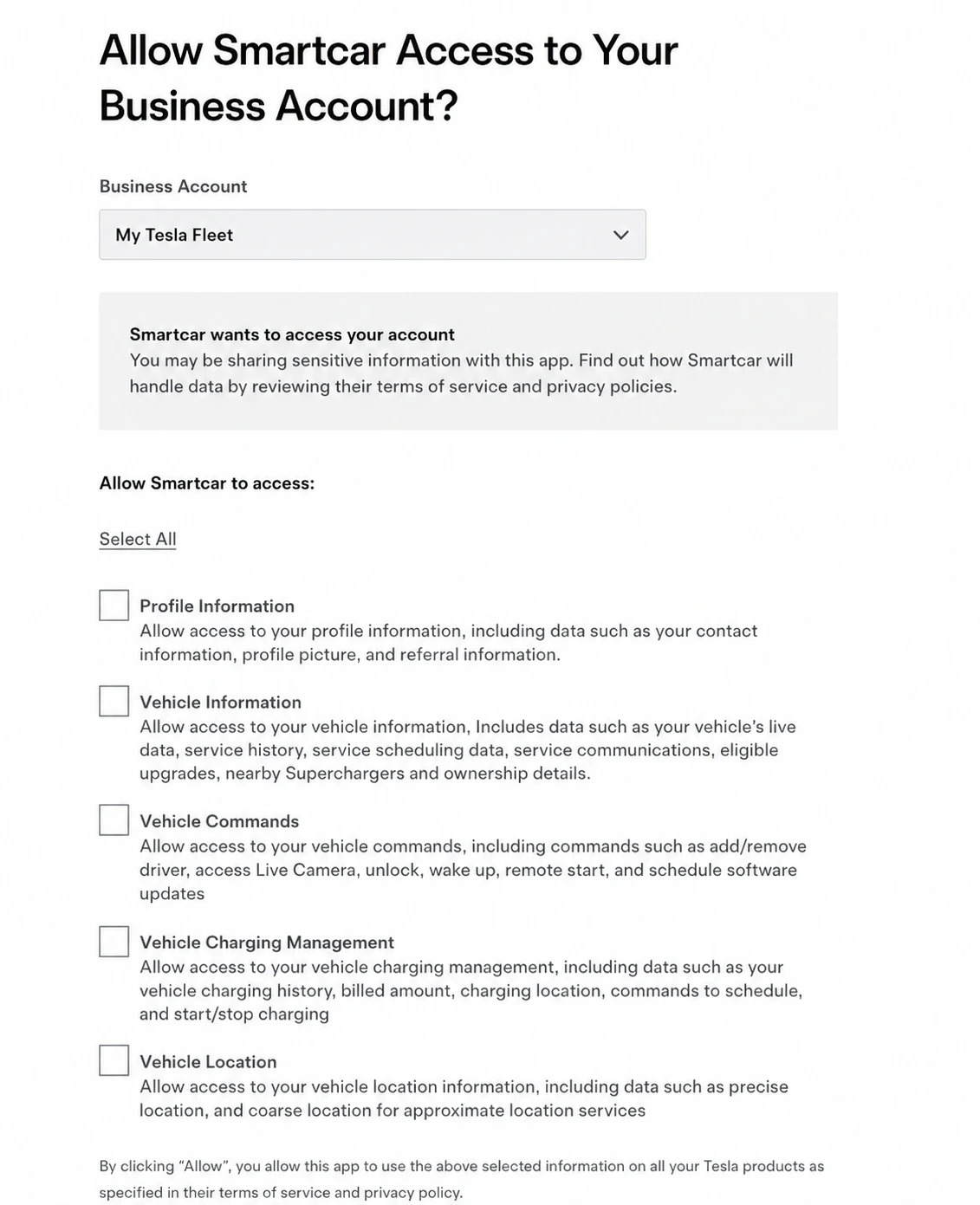
Granting Smartcar access in Tesla Business Suite
Step 3: Smartcar receives consent
Tesla confirms the grant to Smartcar automatically, and Smartcar begins the post-consent setup.What happens after consent
Once Smartcar receives consent, the following runs automatically for vehicles purchased through Tesla’s B2B program:- Vehicle connection. Smartcar establishes a connection with each vehicle.
- Virtual key pairing. Smartcar pairs the Tesla Virtual Key for each vehicle. No action is required from you.
- Daily fleet sync. Smartcar evaluates fleet membership on a daily basis and automatically adds new B2B-purchased vehicles or removes vehicles that have left the fleet.
Managing your fleet in the Smartcar Dashboard
After enrollment, your Tesla Business Fleet vehicles are visible in the Vehicles tab of the Smartcar Dashboard.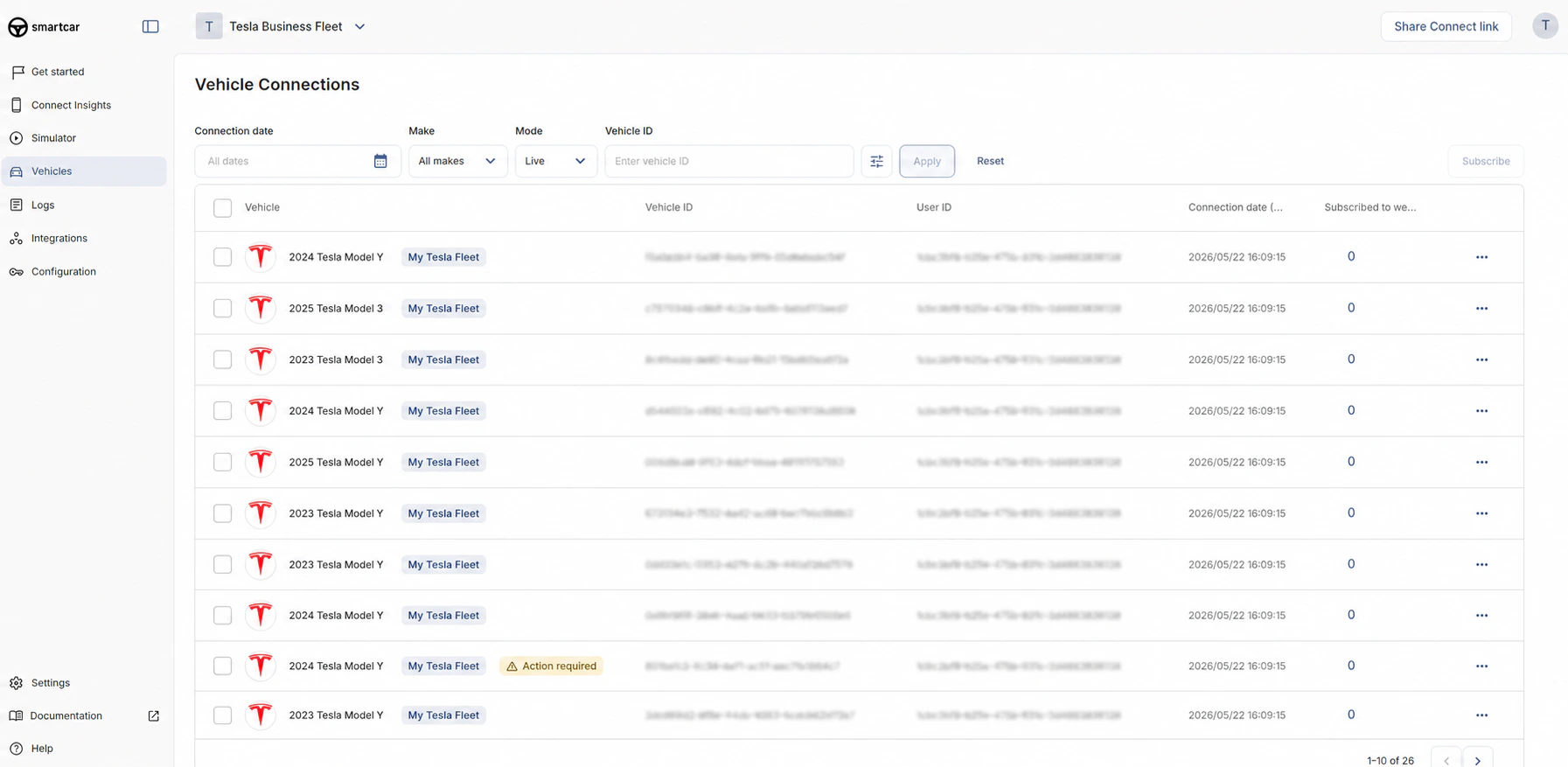
Tesla Business Fleet vehicles in the Smartcar Dashboard
- Review every vehicle on the fleet, including make, model, year, Vehicle ID, User ID, connection date, and webhook subscription count.
- Filter the list by connection date, make, mode, or Vehicle ID.
- See which vehicles need attention. Vehicles flagged with Action required need manual Virtual Key pairing before they can deliver data or accept commands.
Accessing data and issuing commands
Data for Tesla Business Fleet vehicles is delivered through Webhooks. Commands are issued through the Smartcar API, authenticated with a Machine-to-Machine access token.Tesla Business Fleet vehicles are not compatible with per-vehicle (v2) access tokens or v2 API endpoints. Use Webhooks for data and V3 API endpoints with M2M authentication for commands.
Getting started
To enroll your Tesla Business Fleet vehicles, contact Smartcar support. Have the following ready:- The email address of the business contact who will grant access on Tesla Business Suite
- Confirmation that the contact has permissions to manage access for the fleet under your Tesla Business account