> ## Documentation Index
> Fetch the complete documentation index at: https://smartcar.com/docs/llms.txt
> Use this file to discover all available pages before exploring further.
# Callback URI Verification
> Verify your webhook endpoint can receive deliveries
**This page covers initial endpoint verification.** For verifying webhook payload signatures from vehicles, see [Payload Verification](/integrations/webhooks/payload-verification).
When you create a webhook or update a callback URI in the Smartcar Dashboard, Smartcar sends a one-time `VERIFY` event to confirm your endpoint is ready. Your endpoint must respond correctly before Smartcar will deliver any vehicle data.
## The VERIFY Event
Smartcar sends a challenge request to your callback URI in this format:
```json Version 4.0 (NEW) theme={null}
{
"eventId": "52f6e0bb-1369-45da-a61c-9e67d092d6db",
"eventType": "VERIFY",
"data": {
"challenge": ""
},
"meta": {
"version": "4.0",
"webhookId": "5a8e5e38-1e12-4011-a36d-56f120053f9e",
"webhookName": "Example Webhook",
"deliveryId": "5d569643-3a47-4cd1-a3ec-db5fc1f6f03b",
"deliveredAt": "2025-07-31T19:38:42.332Z"
}
}
```
```json Version 2.0 theme={null}
{
"version": "2.0",
"webhookId": "",
"eventName": "verify",
"payload": {
"challenge": ""
}
}
```
## Required Response
Your endpoint must respond with:
1. **Status code**: `200 OK`
2. **Content-Type header**: `application/json`
3. **Response body**: A JSON object containing the HMAC-SHA256 hash of the challenge
### Generate the HMAC
Create an HMAC-SHA256 hash of the `challenge` string using your **Application Management Token** as the secret key:
Our [backend SDKs](/api-reference/api-sdks) have helper methods to generate the HMAC.
```js Node theme={null}
let hmac = smartcar.hashChallenge(
application_management_token,
payload.challenge
);
```
```python Python theme={null}
hmac = smartcar.hash_challenge(
application_management_token,
payload.challenge
)
```
```java Java theme={null}
String hmac = Smartcar.hashChallenge(
application_management_token,
payload.challenge
);
```
```ruby Ruby theme={null}
hmac = Smartcar.hash_challenge(
application_management_token,
payload.challenge
)
```
### Return the Response
Return the hex-encoded hash in your response body with the key `challenge`:
```json Response Body theme={null}
{
"challenge": "{HMAC-hex-string}"
}
```
If your endpoint fails to respond correctly within 15 seconds, Smartcar will not activate the webhook. You can retry verification from the Dashboard at any time.
***
## Verify webhook challenges inside the Dashboard
Use the Smartcar Dashboard to understand exactly what Smartcar expects before you enable webhooks in production. The **Verify webhook** modal shows a sample challenge string plus language-specific snippets so you can implement the same HMAC signature in your code.
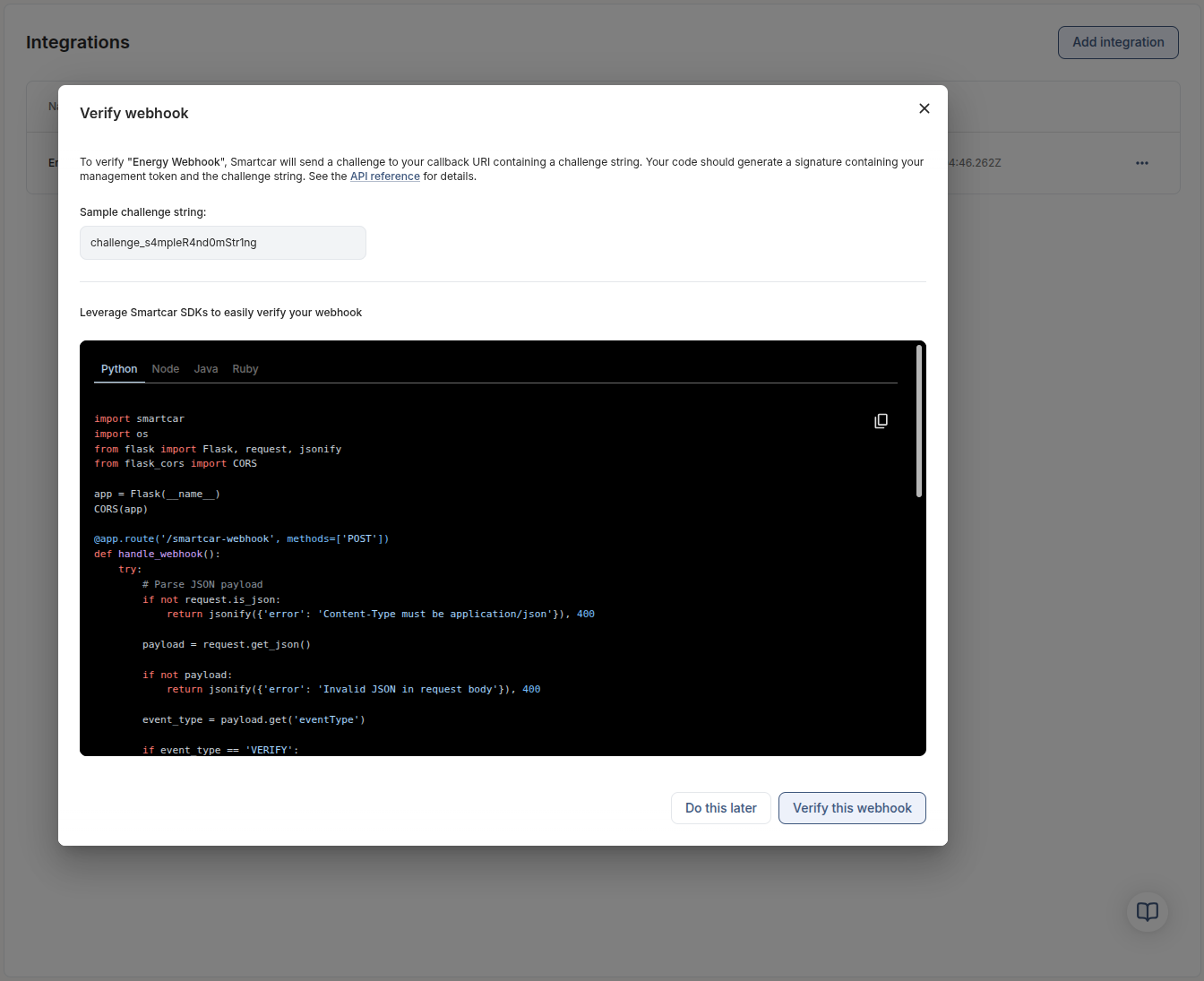 Copy the challenge string from the modal and use the embedded snippets (Python, Node, Java, or Ruby) as references while you code the signature logic on your server. Run your handler locally or in staging so it is ready to answer Smartcar’s challenge.
Once your server is ready, click **Verify this webhook**. Smartcar sends the challenge payload to your callback URL, and your code responds with the signature it just produced.
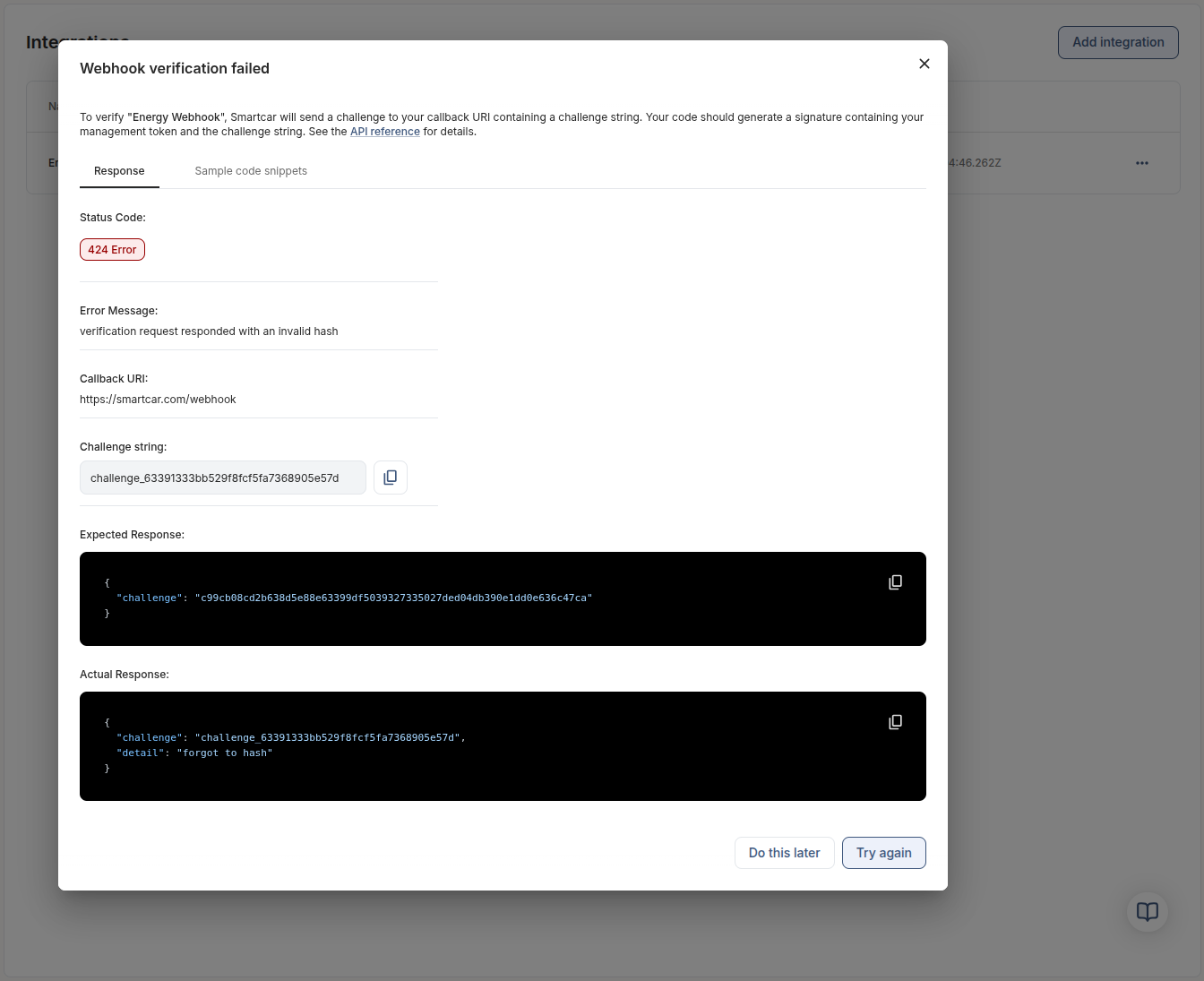
The Response tab displays the HTTP status, the challenge Smartcar sent, the signature Smartcar expected, and the body your server returned. Use this side-by-side view to confirm success or adjust your implementation before retrying.
Copy the challenge string from the modal and use the embedded snippets (Python, Node, Java, or Ruby) as references while you code the signature logic on your server. Run your handler locally or in staging so it is ready to answer Smartcar’s challenge.
Once your server is ready, click **Verify this webhook**. Smartcar sends the challenge payload to your callback URL, and your code responds with the signature it just produced.
The Response tab displays the HTTP status, the challenge Smartcar sent, the signature Smartcar expected, and the body your server returned. Use this side-by-side view to confirm success or adjust your implementation before retrying.