> ## Documentation Index
> Fetch the complete documentation index at: https://smartcar.com/docs/llms.txt
> Use this file to discover all available pages before exploring further.
# mySmartcar
> With [mySmartcar](https://my.smartcar.com/login), you can see which apps are connected to your vehicle and manage their permissions anytime.
## Log in
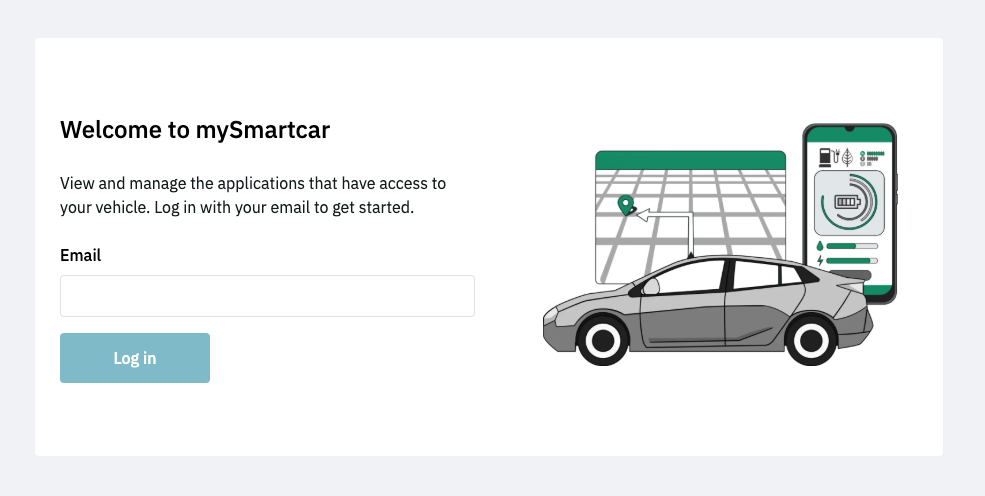
Log into [mySmartcar](https://my.smartcar.com/login) by providing your preferred email address. A 6-digit code will be sent to you by email, which will grant access to mySmartcar.
 ## Connect your OEM account
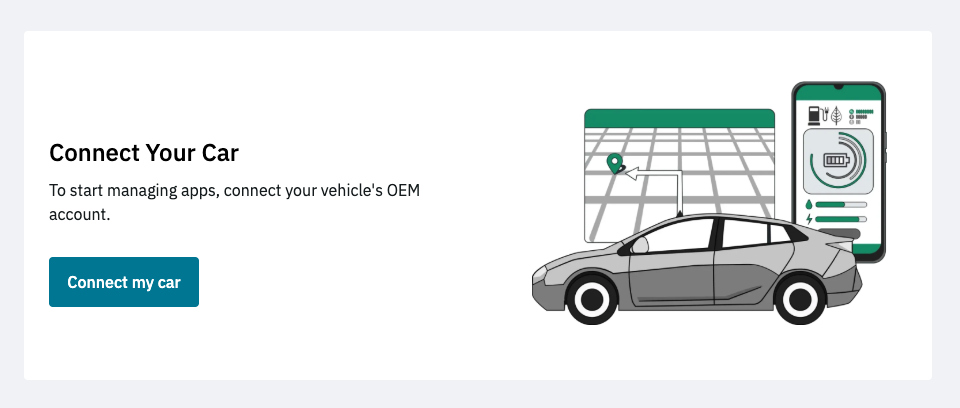
Now press "Connect your Car" and follow the on-screen prompts to pair your Connected Services account with mySmartcar.
## Connect your OEM account
Now press "Connect your Car" and follow the on-screen prompts to pair your Connected Services account with mySmartcar.
 ## Review and manages connected apps
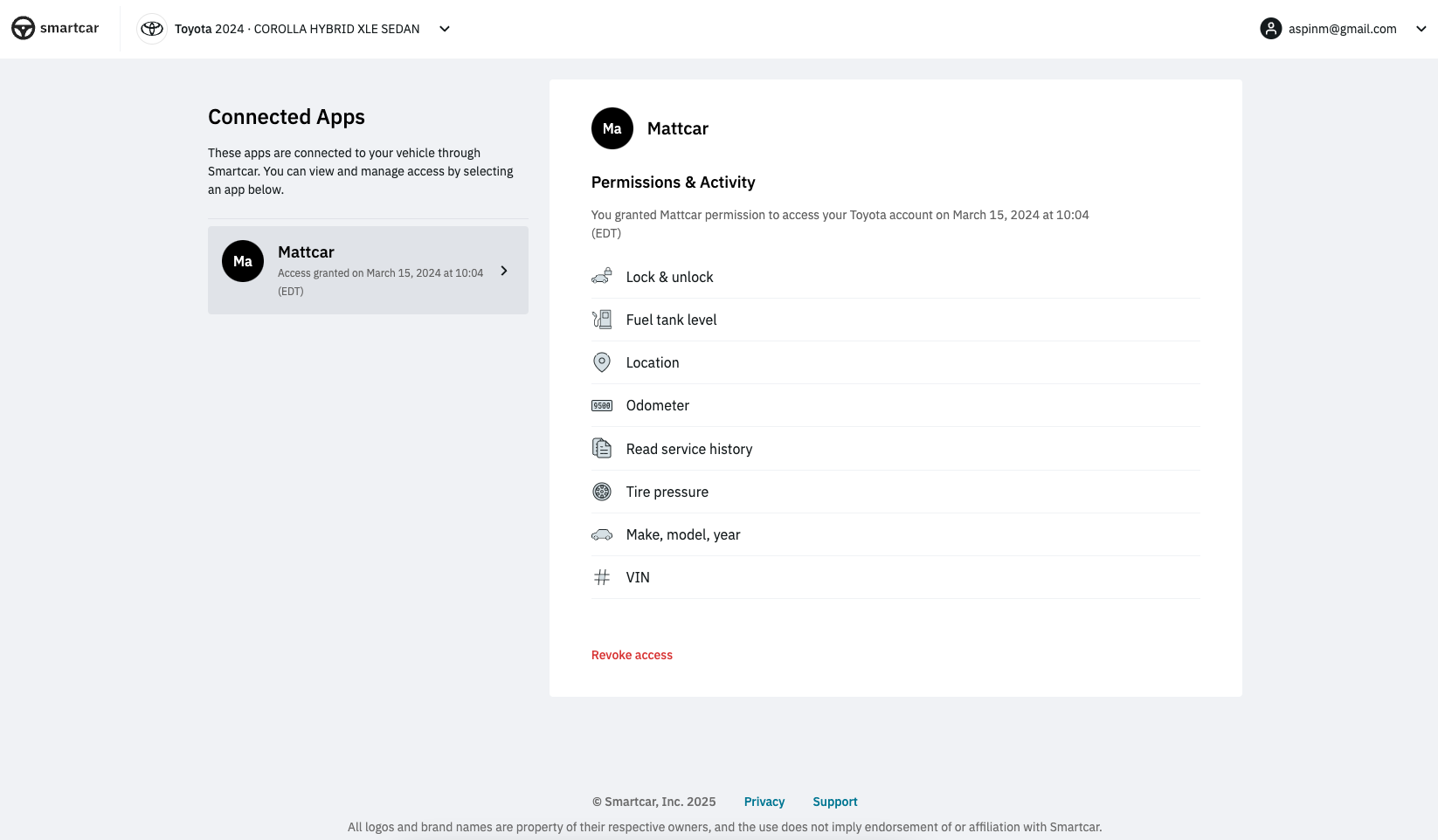
Once your OEM account is connected, Smartcar will provide a list of each application connected via Smartcar to your Connected Services account. Here you can see when the app was first granted access and the permissions requested.
Should you wish to disconnect an application, click "Revoke Access" and confirm to remove access to your vehicle's data for that application.
## Review and manages connected apps
Once your OEM account is connected, Smartcar will provide a list of each application connected via Smartcar to your Connected Services account. Here you can see when the app was first granted access and the permissions requested.
Should you wish to disconnect an application, click "Revoke Access" and confirm to remove access to your vehicle's data for that application.