> ## Documentation Index
> Fetch the complete documentation index at: https://smartcar.com/docs/llms.txt
> Use this file to discover all available pages before exploring further.
> Learn how to submit a support ticket through the Smartcar Support Center, including step-by-step instructions and eligibility details based on your plan.
# How to Submit a Ticket in the Support Center
For information on how to access the Smartcar Support Center, please visit the following article: [Accessing the Smartcar Support Center](/help/accessing-support-center)
***
### **How to Submit a Support Ticket**
**1. Select "Submit a Ticket"**\
Once in the Support Center, click **"Submit a Ticket"** at the top right corner of the page to begin creating your ticket. 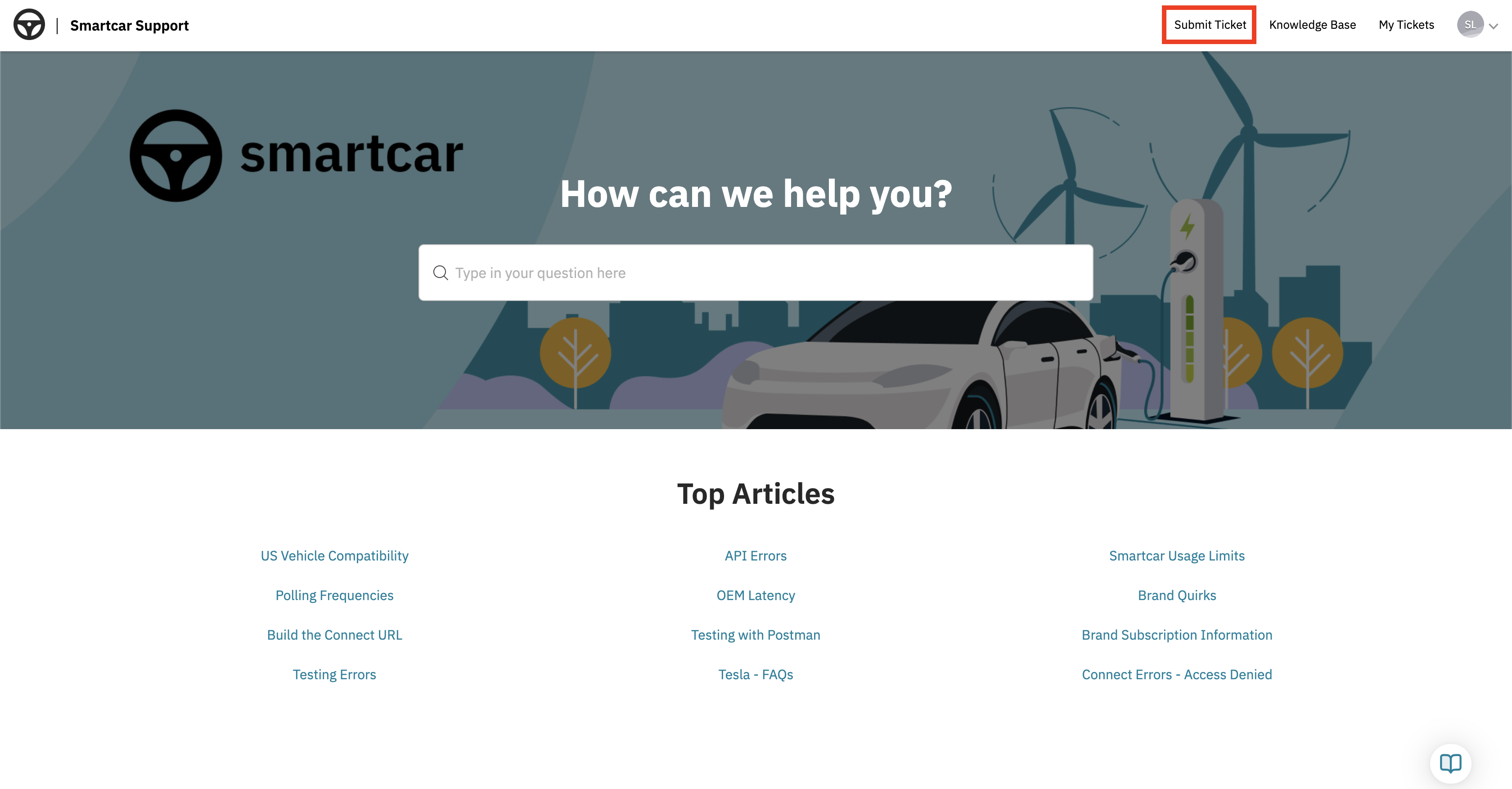 **2. Fill Out the Ticket Form**\
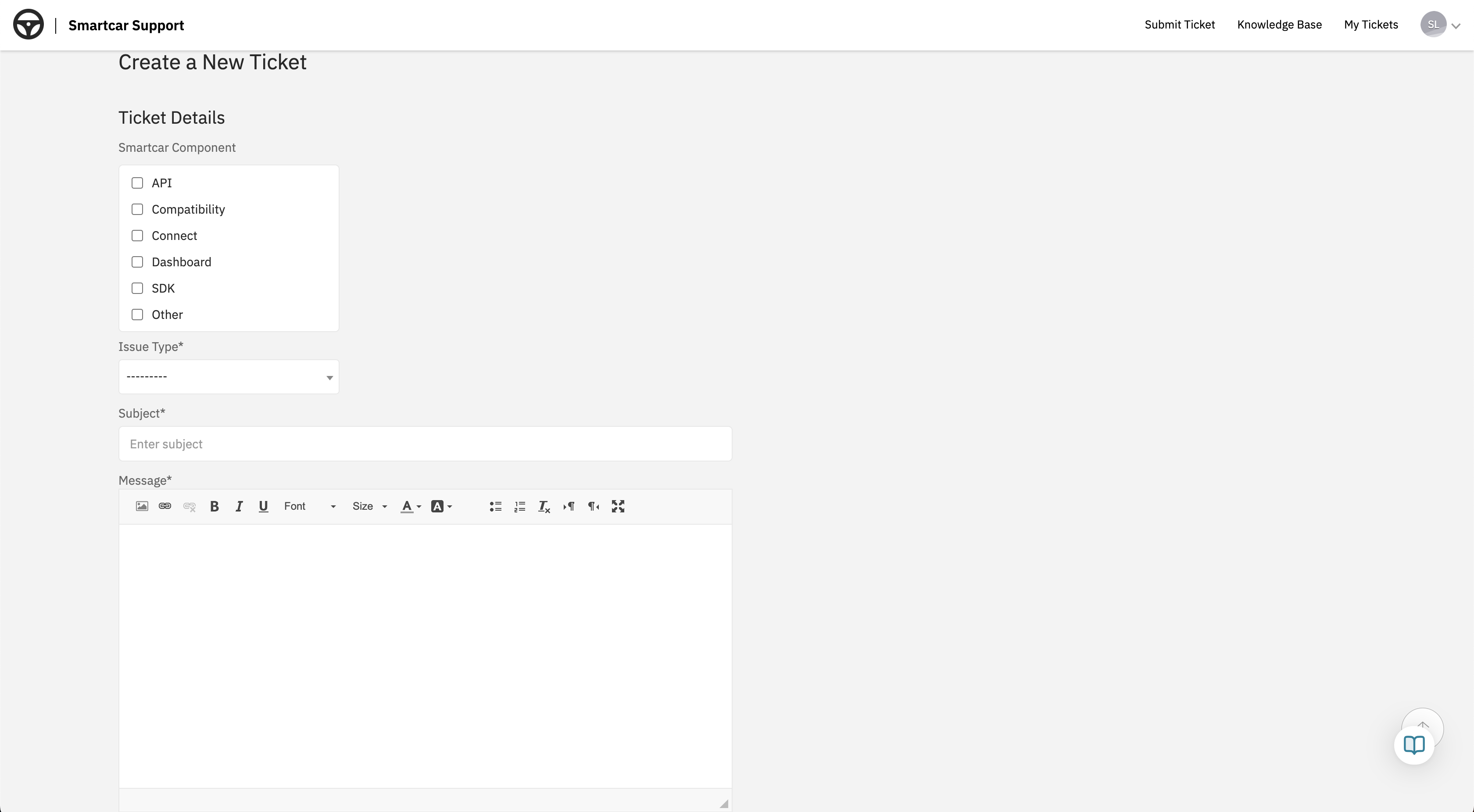
Provide details such as:
* Subject
* Description
* Please include as much relevant context as possible such as Session IDs, Vehicle IDs, screenshots, etc.
* The Smartcar Component affected
* The issue type
**2. Fill Out the Ticket Form**\
Provide details such as:
* Subject
* Description
* Please include as much relevant context as possible such as Session IDs, Vehicle IDs, screenshots, etc.
* The Smartcar Component affected
* The issue type
 **3. Submit Your Ticket**\
Click **Submit**, and your request will be sent to our Support team.
**4. Track Your Request**\
You can view and track the status of your tickets under **"My Tickets"** in the Support Center.
**3. Submit Your Ticket**\
Click **Submit**, and your request will be sent to our Support team.
**4. Track Your Request**\
You can view and track the status of your tickets under **"My Tickets"** in the Support Center. 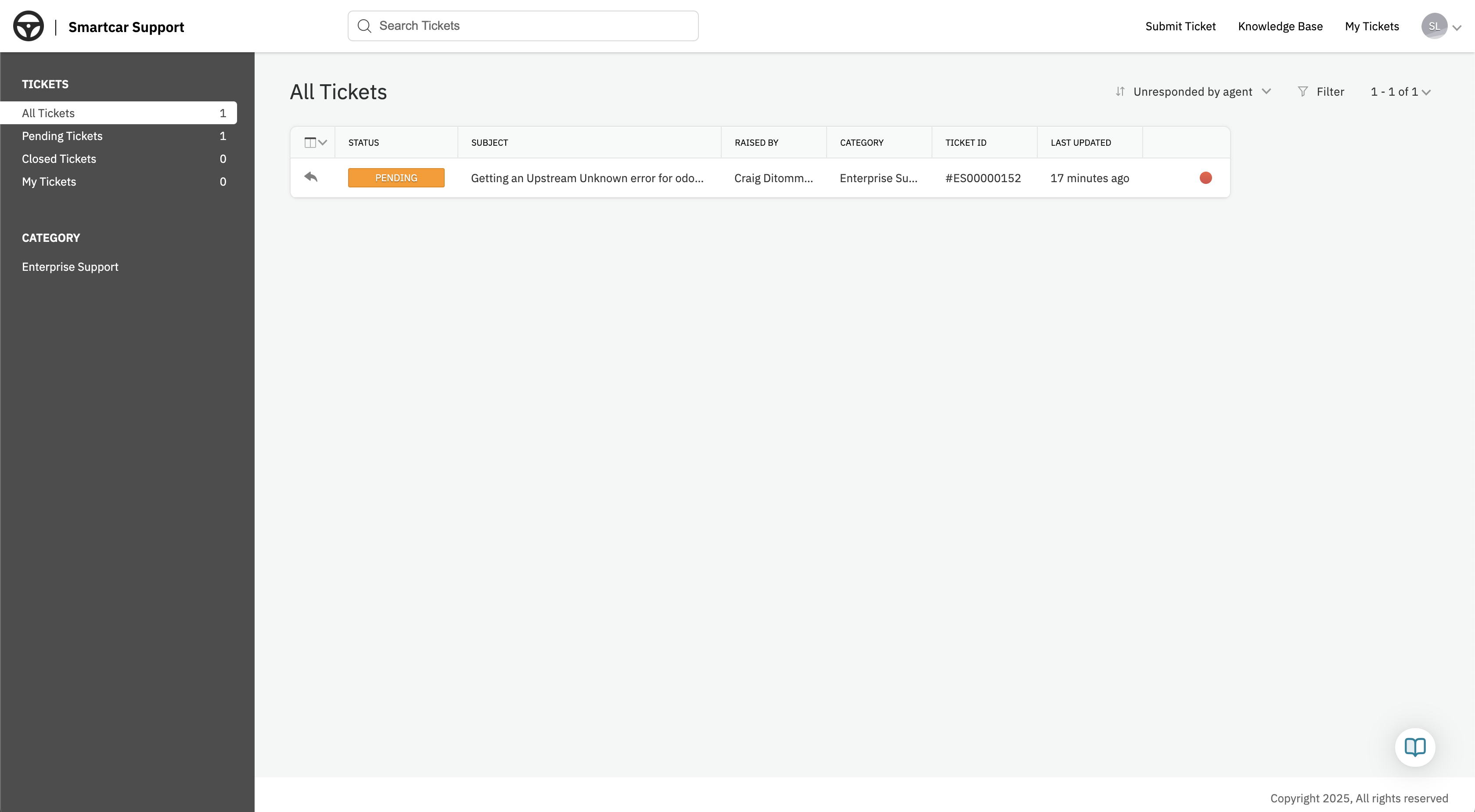 **5. Update or Close a Request**\
Select the ticket you'd like to update or close from the **"My Tickets"** view. Once you're on the ticket page:
* Click **"Reply"** at the bottom left to add more information or request a status update.
* Click **"Close Ticket"** at the bottom right to mark the request as **Closed - Resolved** if you no longer need assistance.
**5. Update or Close a Request**\
Select the ticket you'd like to update or close from the **"My Tickets"** view. Once you're on the ticket page:
* Click **"Reply"** at the bottom left to add more information or request a status update.
* Click **"Close Ticket"** at the bottom right to mark the request as **Closed - Resolved** if you no longer need assistance. 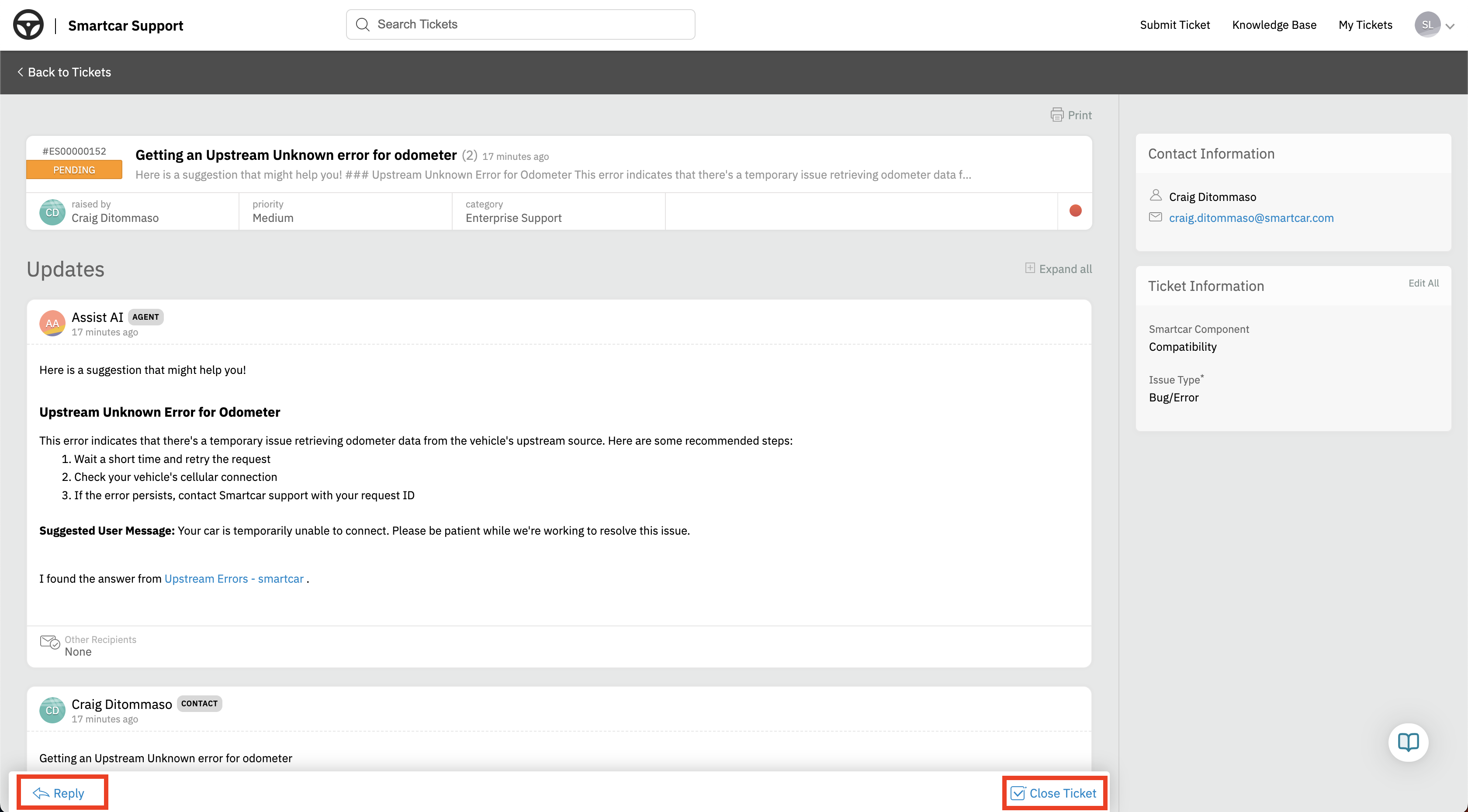 ***
### **Who can submit tickets?**
Ticket submission is available to users on **Build** and **Custom** **Enterprise** plans.
**Free plan users** can access the Docs Center and AI Agent within the Dashboard for assistance but do not have access to submit tickets.
***
### **Who can submit tickets?**
Ticket submission is available to users on **Build** and **Custom** **Enterprise** plans.
**Free plan users** can access the Docs Center and AI Agent within the Dashboard for assistance but do not have access to submit tickets.