> ## Documentation Index
> Fetch the complete documentation index at: https://smartcar.com/docs/llms.txt
> Use this file to discover all available pages before exploring further.
# Assist AI features in Slack
> As part of our Enterprise Slack support offering, Smartcar includes access on select Enterprise plans to an AI-powered assistant that can help you get answers quickly, submit tickets, and navigate support resources—all without leaving your Slack workspace.
## 1. Ask a Question
In your dedicated Slack support channel, send a message with your question. The AI Agent will attempt to answer it based on Smartcar’s support documentation and past support interactions. 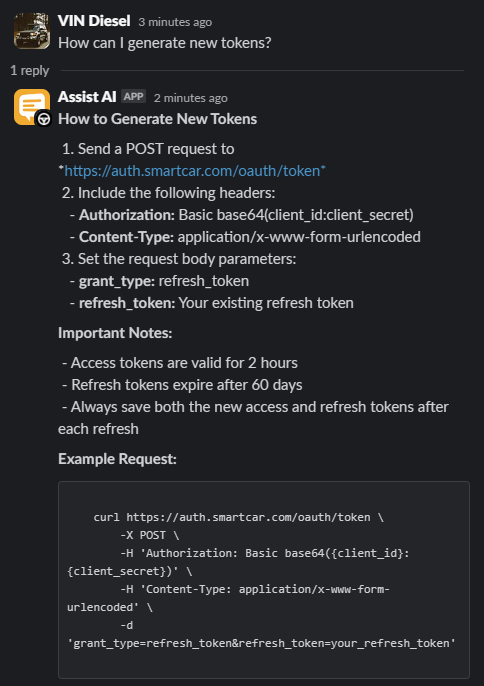 ## 2. Submit a Support Ticket
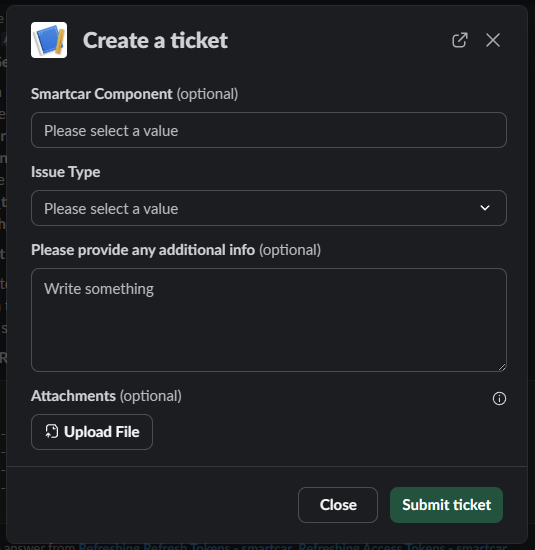
If your question requires deeper support, simply click **"Create a Ticket"** at the bottom of the AI-generated response within the Slack channel. This will open a form to submit a formal, trackable support request.
## 2. Submit a Support Ticket
If your question requires deeper support, simply click **"Create a Ticket"** at the bottom of the AI-generated response within the Slack channel. This will open a form to submit a formal, trackable support request. 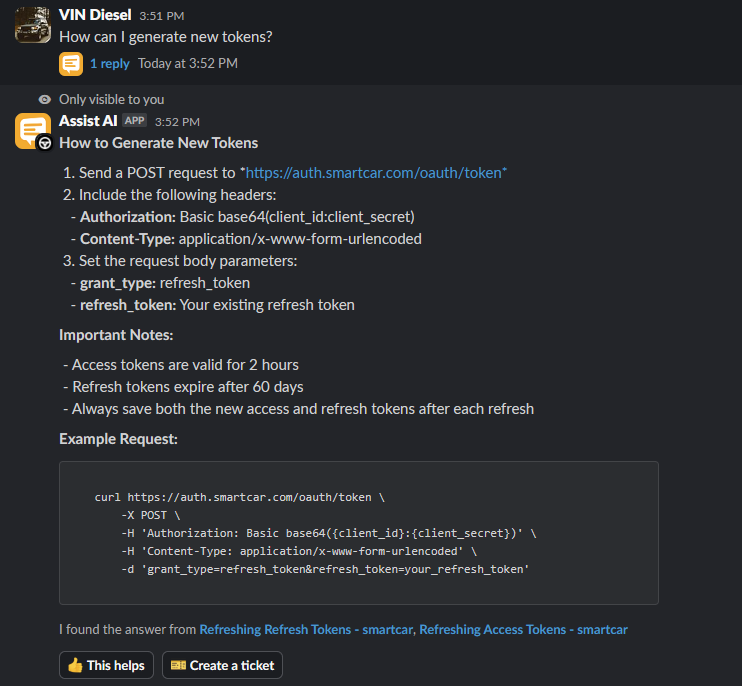
 ## 3. View Open Tickets
To check the status of an existing ticket, navigate to the Slack thread where the ticket was created and click the **"View Ticket Info"** icon. This will display the current status and details of your support request.
## 3. View Open Tickets
To check the status of an existing ticket, navigate to the Slack thread where the ticket was created and click the **"View Ticket Info"** icon. This will display the current status and details of your support request. 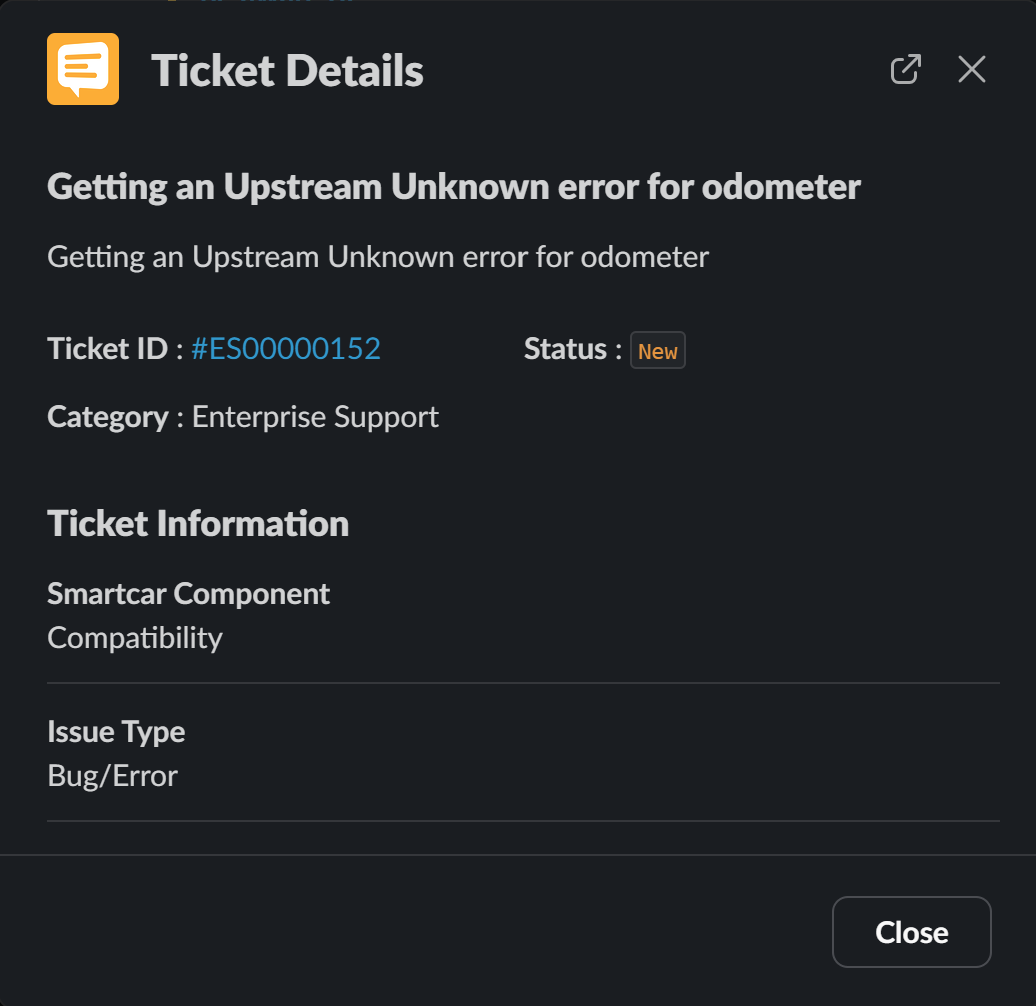 ## 4. Navigate to the Support Center
Need more detailed help? You can access your ticket by clicking the **ticket ID** that appears after submitting a request using the **"Create a Ticket"** option. Alternatively, from the **"View Ticket Info"** window, you can click the **ticket number** to be redirected to the Smartcar Developer Dashboard. If you're already logged into an active session, you'll be taken directly to the ticket details within the Support Center. Otherwise, you'll be prompted to log in first.
In the Support Center, you can:
* Browse our documentation
* Submit new support requests
* View and update your existing tickets
For step-by-step instructions on how to log into the Smartcar Support Center, please see the following article: [Accessing the Smartcar Support Center](/help/accessing-support-center)
## 4. Navigate to the Support Center
Need more detailed help? You can access your ticket by clicking the **ticket ID** that appears after submitting a request using the **"Create a Ticket"** option. Alternatively, from the **"View Ticket Info"** window, you can click the **ticket number** to be redirected to the Smartcar Developer Dashboard. If you're already logged into an active session, you'll be taken directly to the ticket details within the Support Center. Otherwise, you'll be prompted to log in first.
In the Support Center, you can:
* Browse our documentation
* Submit new support requests
* View and update your existing tickets
For step-by-step instructions on how to log into the Smartcar Support Center, please see the following article: [Accessing the Smartcar Support Center](/help/accessing-support-center)