> ## Documentation Index
> Fetch the complete documentation index at: https://smartcar.com/docs/llms.txt
> Use this file to discover all available pages before exploring further.
# Testing with Postman
> In this tutorial we'll go over how to use Vehicle Simulator to test out Smartcar using Postman.
## What is Postman?
Postman is a collaboration platform for API development. Postman's features simplify each step of building an API and streamline collaboration so you can create better APIs - faster.
You’ll need a few things to start making API calls with Smartcar and Postman:
* [A Postman Account](https://identity.getpostman.com/signup?continue=https%3A%2F%2Fgo.postman.co%2Fbuild)
* [Smartcar’s Postman Collection](https://www.postman.com/smartcar/smartcar-api/collection/qk7g8v2/smartcar-api-v3?action=share\&creator=33621094)
* [A Smartcar Developer Account](https://dashboard.smartcar.com/signup)
## Configuring the Connect flow in Postman
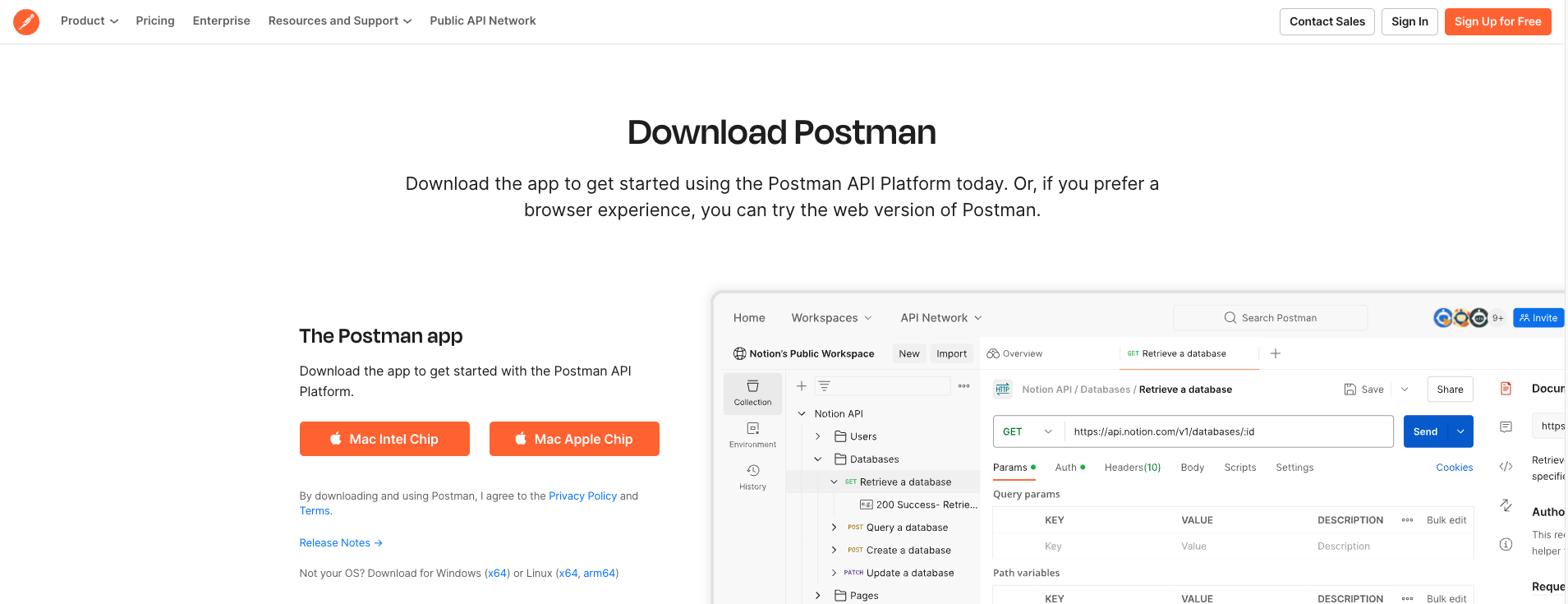
1. Install the latest [Postman app](https://www.postman.com/downloads/) and log in
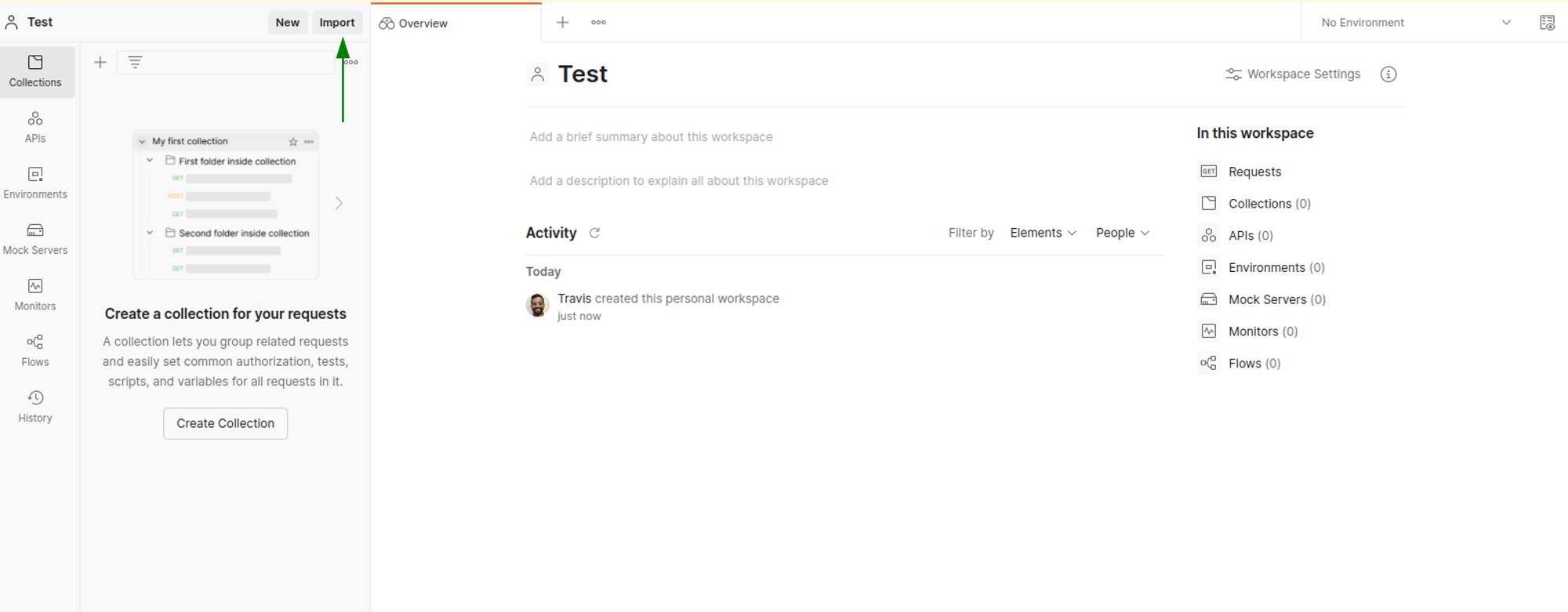
2. Import the [Smartcar collection](https://www.postman.com/smartcar/smartcar-api/collection/qk7g8v2/smartcar-api-v3?action=share\&creator=33621094) into your local Postman workspace. Hit Import.
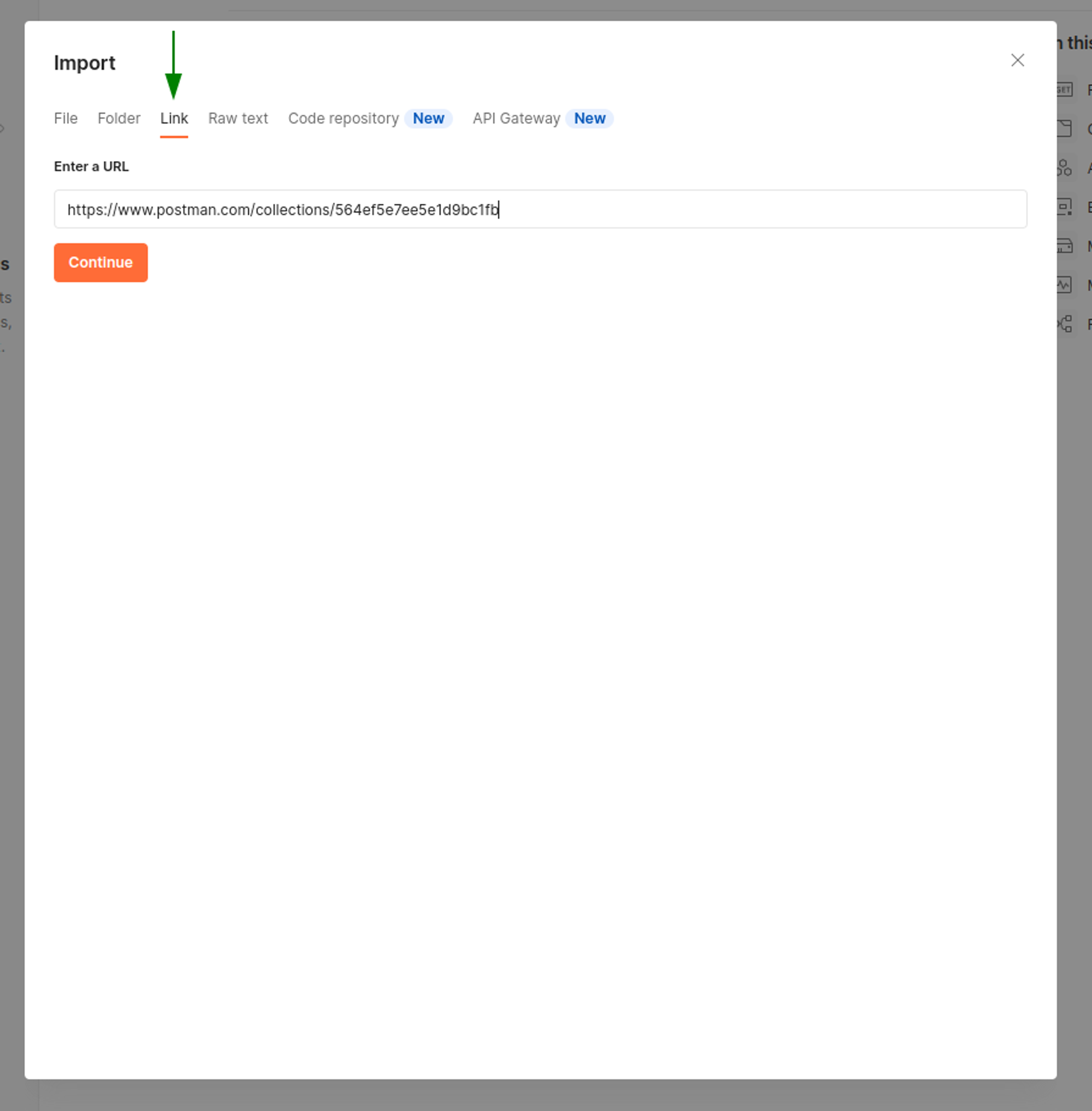
3. Click Link, paste in [the link](https://www.postman.com/smartcar/smartcar-api/collection/qk7g8v2/smartcar-api-v3?action=share\&creator=33621094) to the collection and hit Continue.
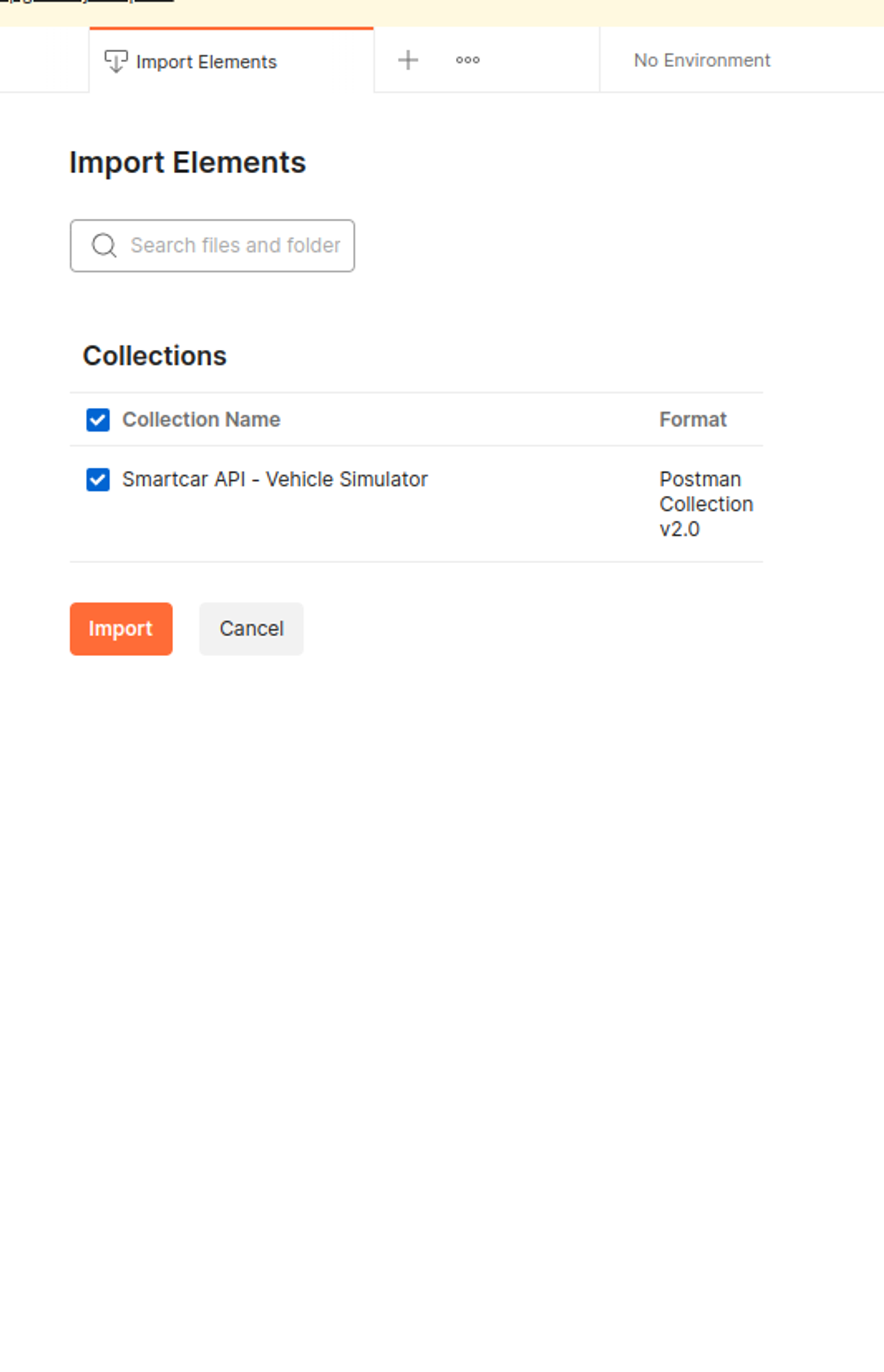
4. On the next screen, hit Import.
 ## Smartcar Application Configuration
If you haven’t already signed up for a Smartcar Developer account, you can do so from this [**sign-up link**](https://dashboard.smartcar.com/signup).
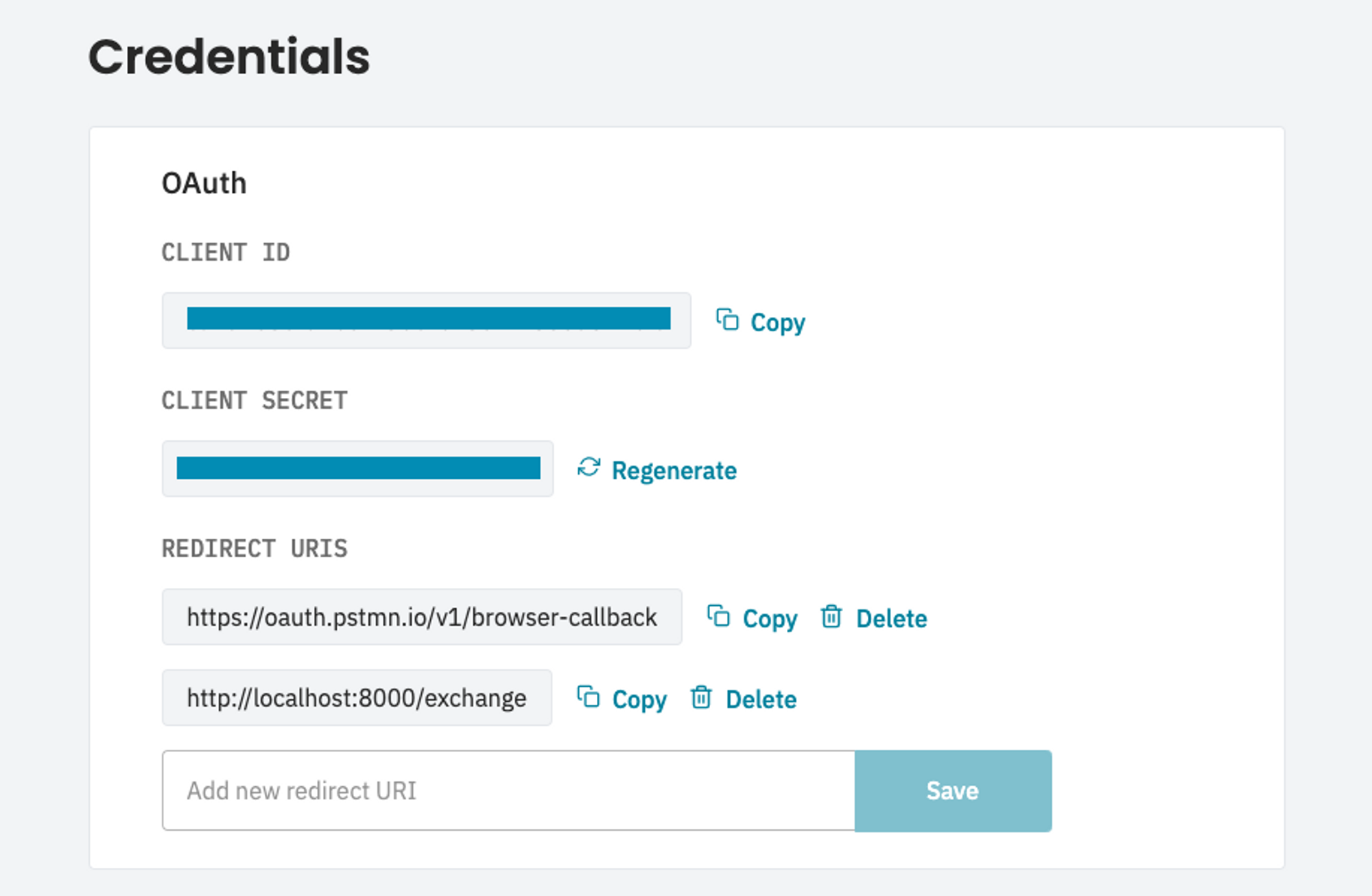
* Grab your **Client ID** and **Client Secret** from the Configuration page after you sign in, and copy them to someplace secure. You’ll need those tokens a little later in this setup.
* Under **Configuration > Application Details** for your application, you’ll need to add the following Redirect URIs. This will ensure that Smartcar Connect exits successfully with both Postman’s Native and Web clients.
```
https://oauth.pstmn.io/v1/browser-callback
http://localhost:8000/exchange
```
## Smartcar Application Configuration
If you haven’t already signed up for a Smartcar Developer account, you can do so from this [**sign-up link**](https://dashboard.smartcar.com/signup).
* Grab your **Client ID** and **Client Secret** from the Configuration page after you sign in, and copy them to someplace secure. You’ll need those tokens a little later in this setup.
* Under **Configuration > Application Details** for your application, you’ll need to add the following Redirect URIs. This will ensure that Smartcar Connect exits successfully with both Postman’s Native and Web clients.
```
https://oauth.pstmn.io/v1/browser-callback
http://localhost:8000/exchange
```
 Through the Connect flow, you’re able to get consent from vehicle owners to connect their vehicle to your application. Postman provides an easy way to manage OAuth 2.0 flows under the Authorization tab of a Collection. Set up the Configuration Options for either a live or simulated vehicle.
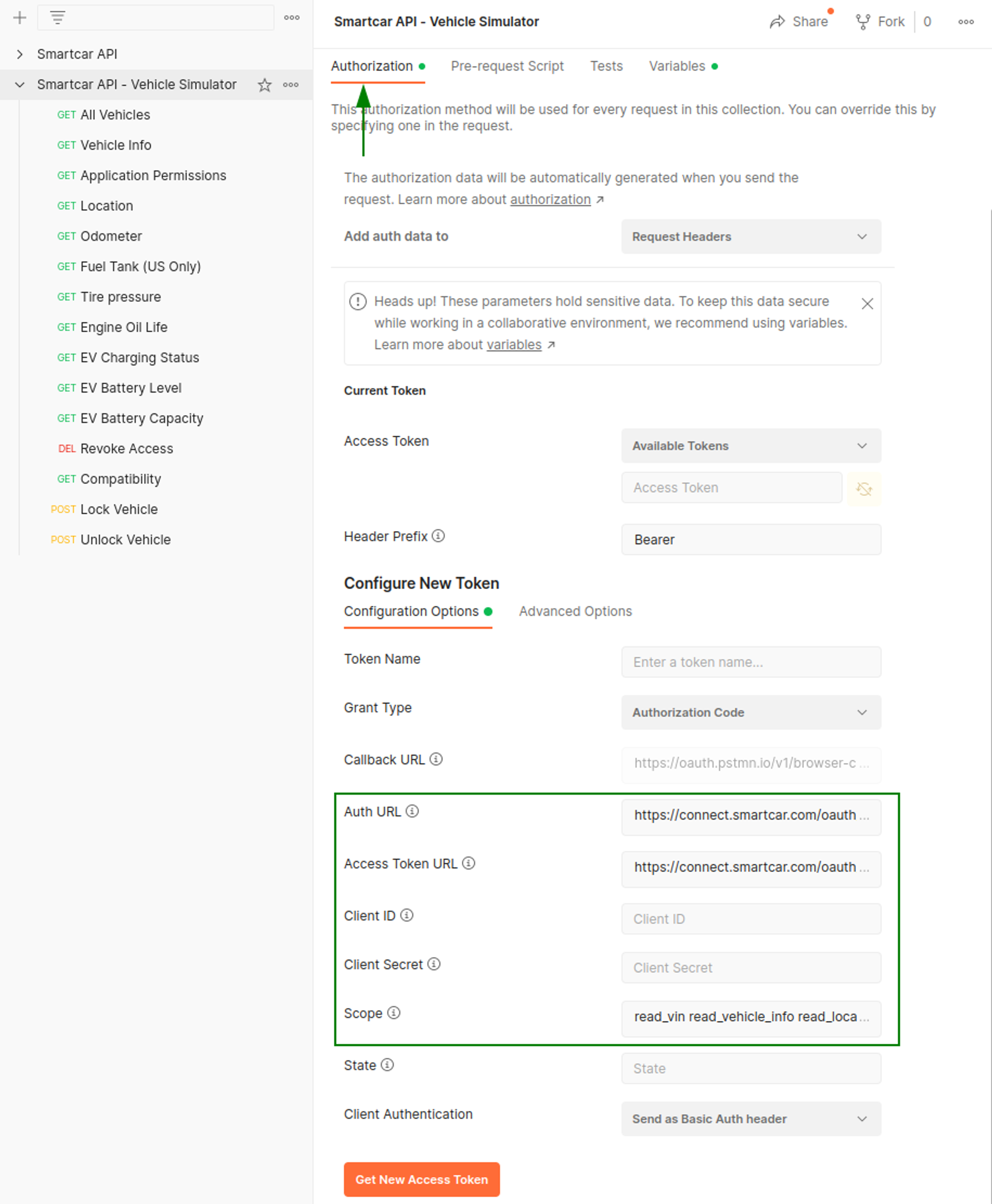 **Live Vehicle**
| Parameter | Description |
| ---------------- | ----------------------------------------------------------------------------------------------------------------- |
| Auth URL | `https://connect.smartcar.com/oauth/authorize?approval_prompt=force` |
| Access Token URL | `https://iam.smartcar.com/oauth2/token` |
| Client ID | `client_id` from your Dashboard |
| Client Secret | `client_secret` from your Dashboard |
| Grant Type | `client_credentials` |
| Scope | A space-separated list of [permissions](/api-reference/permissions) that your application is requesting access to |
**Simulated Vehicle**
| Parameter | Description |
| ---------------- | ----------------------------------------------------------------------------------------------------------------- |
| Auth URL | `https://connect.smartcar.com/oauth/authorize?approval_prompt=force&mode=simulated` |
| Access Token URL | `https://iam.smartcar.com/oauth2/token` |
| Client ID | `client_id` from your Dashboard |
| Client Secret | `client_secret` from your Dashboard |
| Grant Type | `client_credentials` |
| Scope | A space-separated list of [permissions](/api-reference/permissions) that your application is requesting access to |
## Setting up a Simulated Vehicle
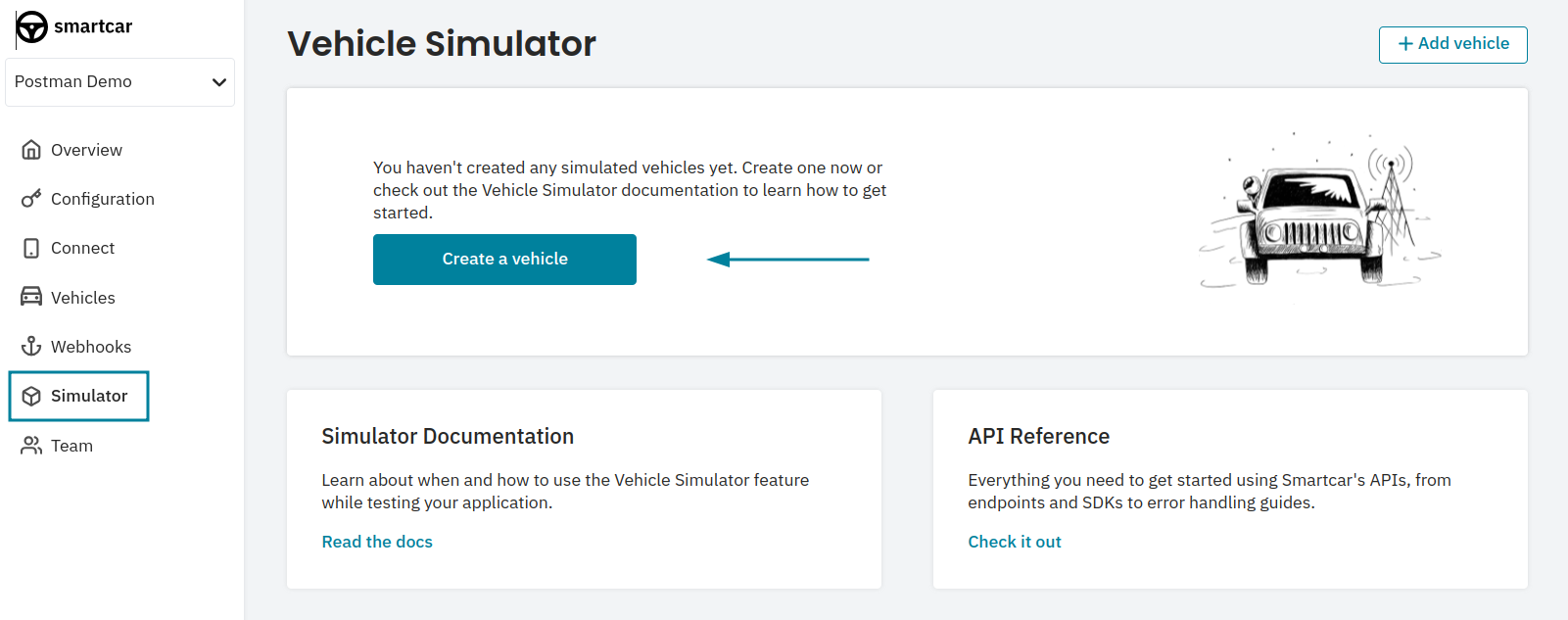
Under the Simulator tab on Dashboard, hit Add Vehicle. Note that you may already have a pre-created simulated vehicle available, if so skip to **Connecting to a vehicle** below.
**Live Vehicle**
| Parameter | Description |
| ---------------- | ----------------------------------------------------------------------------------------------------------------- |
| Auth URL | `https://connect.smartcar.com/oauth/authorize?approval_prompt=force` |
| Access Token URL | `https://iam.smartcar.com/oauth2/token` |
| Client ID | `client_id` from your Dashboard |
| Client Secret | `client_secret` from your Dashboard |
| Grant Type | `client_credentials` |
| Scope | A space-separated list of [permissions](/api-reference/permissions) that your application is requesting access to |
**Simulated Vehicle**
| Parameter | Description |
| ---------------- | ----------------------------------------------------------------------------------------------------------------- |
| Auth URL | `https://connect.smartcar.com/oauth/authorize?approval_prompt=force&mode=simulated` |
| Access Token URL | `https://iam.smartcar.com/oauth2/token` |
| Client ID | `client_id` from your Dashboard |
| Client Secret | `client_secret` from your Dashboard |
| Grant Type | `client_credentials` |
| Scope | A space-separated list of [permissions](/api-reference/permissions) that your application is requesting access to |
## Setting up a Simulated Vehicle
Under the Simulator tab on Dashboard, hit Add Vehicle. Note that you may already have a pre-created simulated vehicle available, if so skip to **Connecting to a vehicle** below.
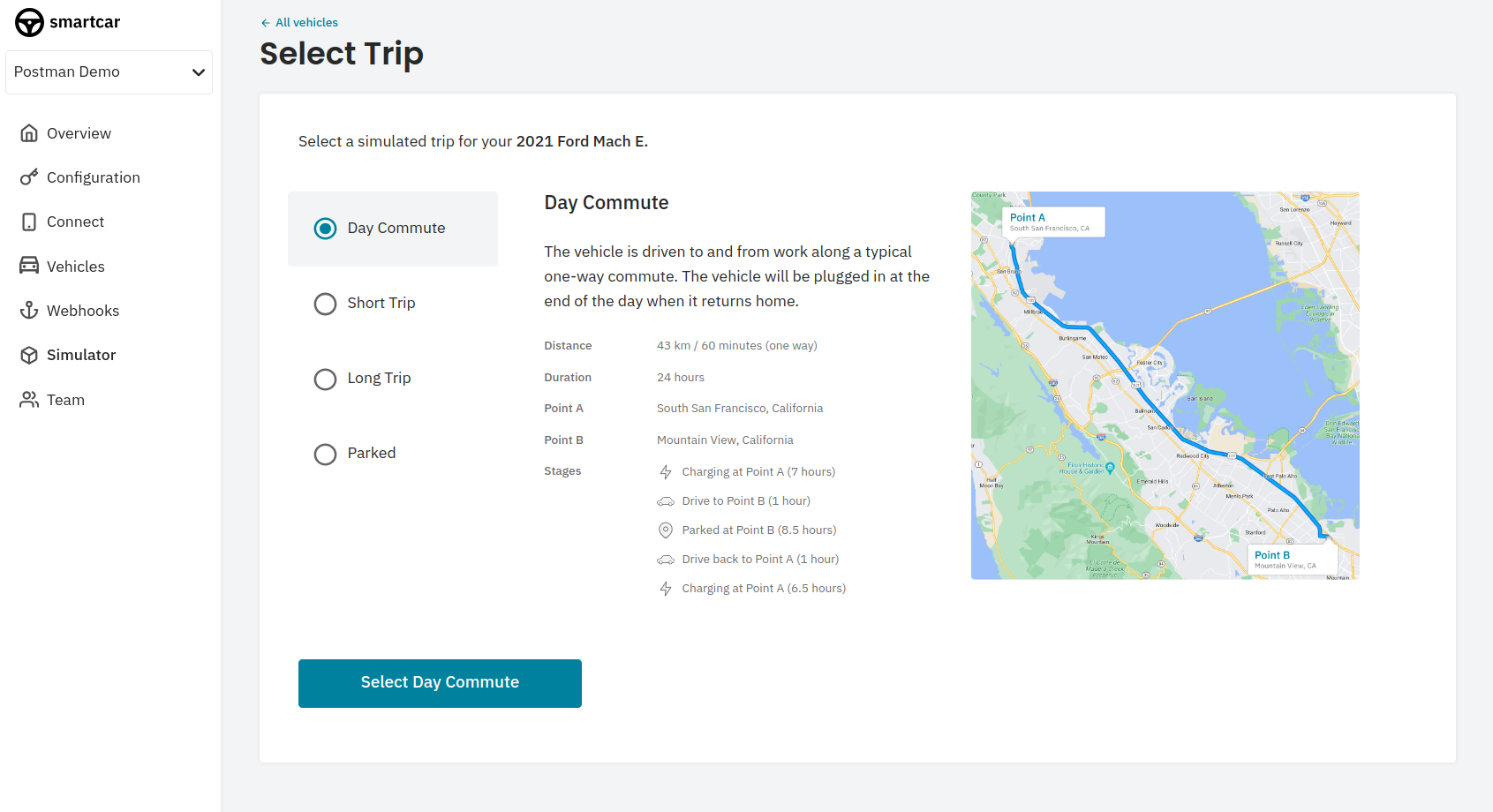
 Select a region and MMY for your vehicle, then hit Search by MMY
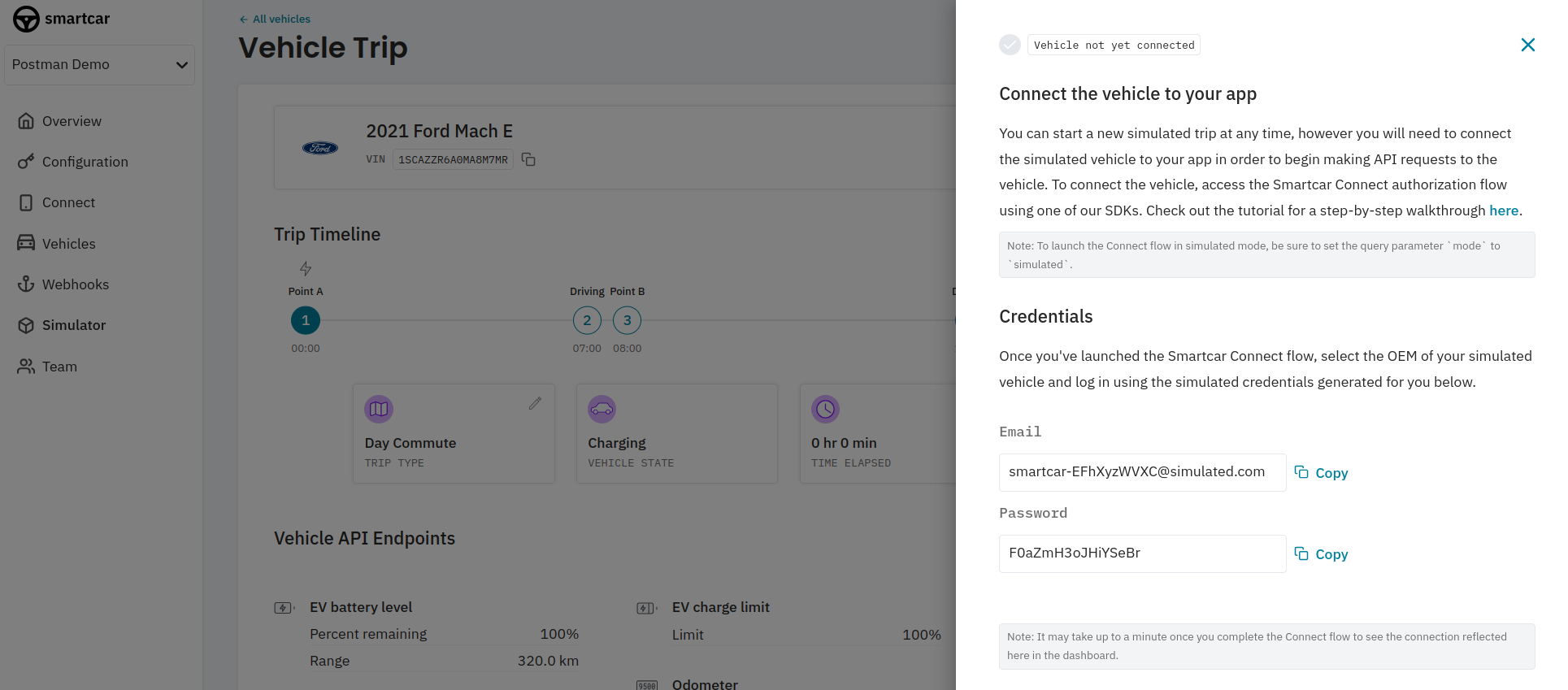
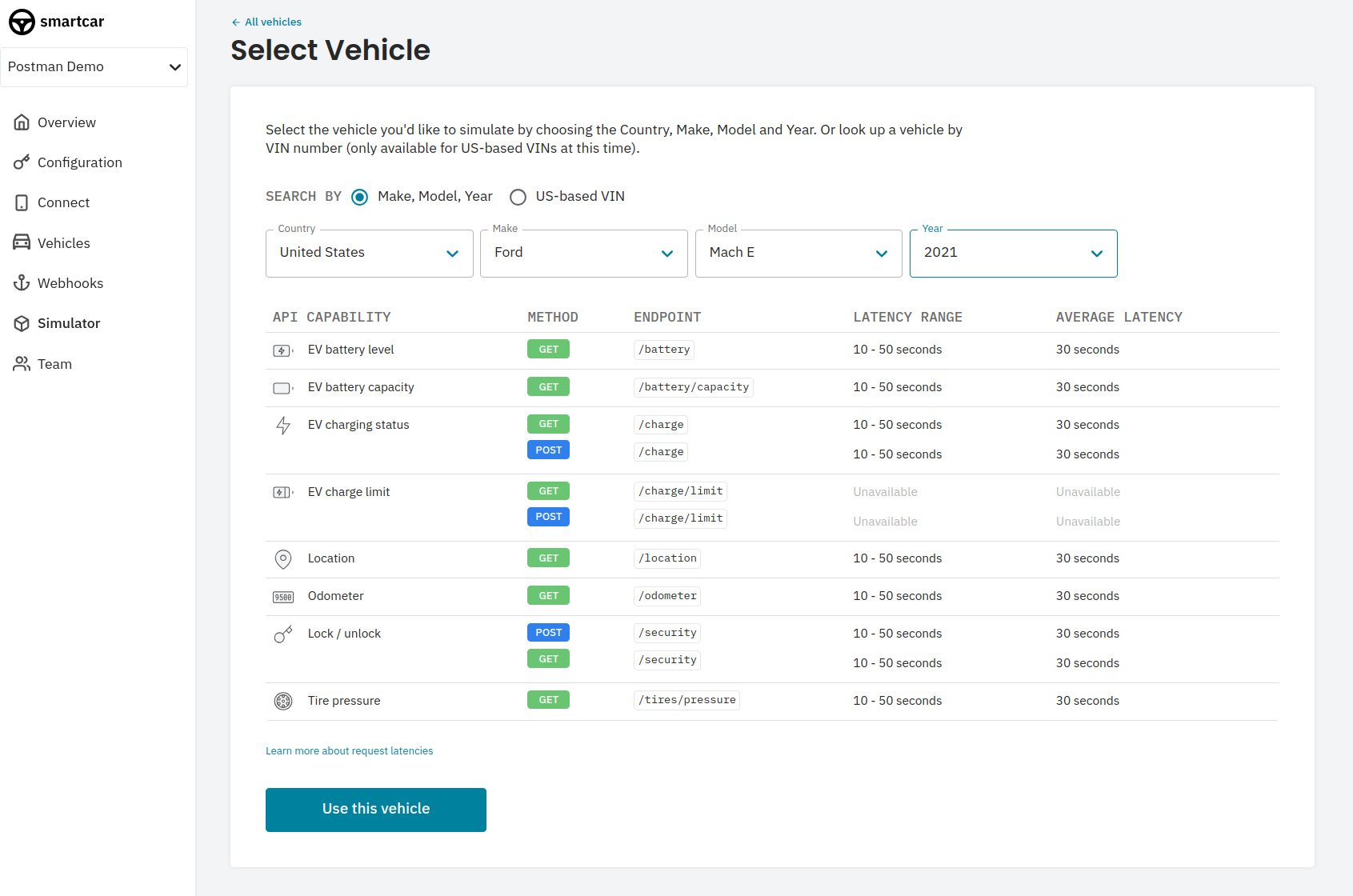 After selecting Use Vehicle, you’ll want to select a state for the vehicle. After that, you’ll get a set of credentials to use in the Connect flow.
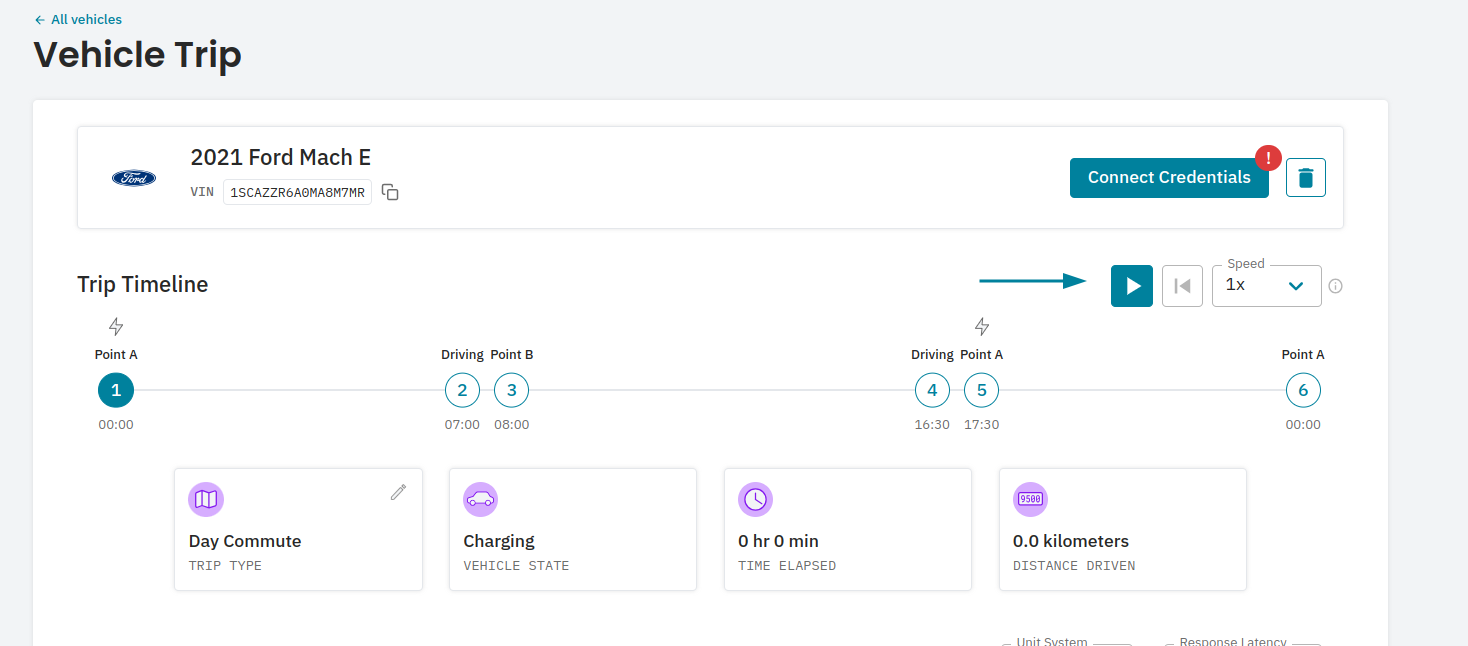
 Before proceeding to the next step, you’ll want to start the simulation in the Smartcar Dashboard.
 ## Connecting to a vehicle
If configured correctly, when you click **Get New Access Token** in Postman, you should see the first screen of the Connect flow.
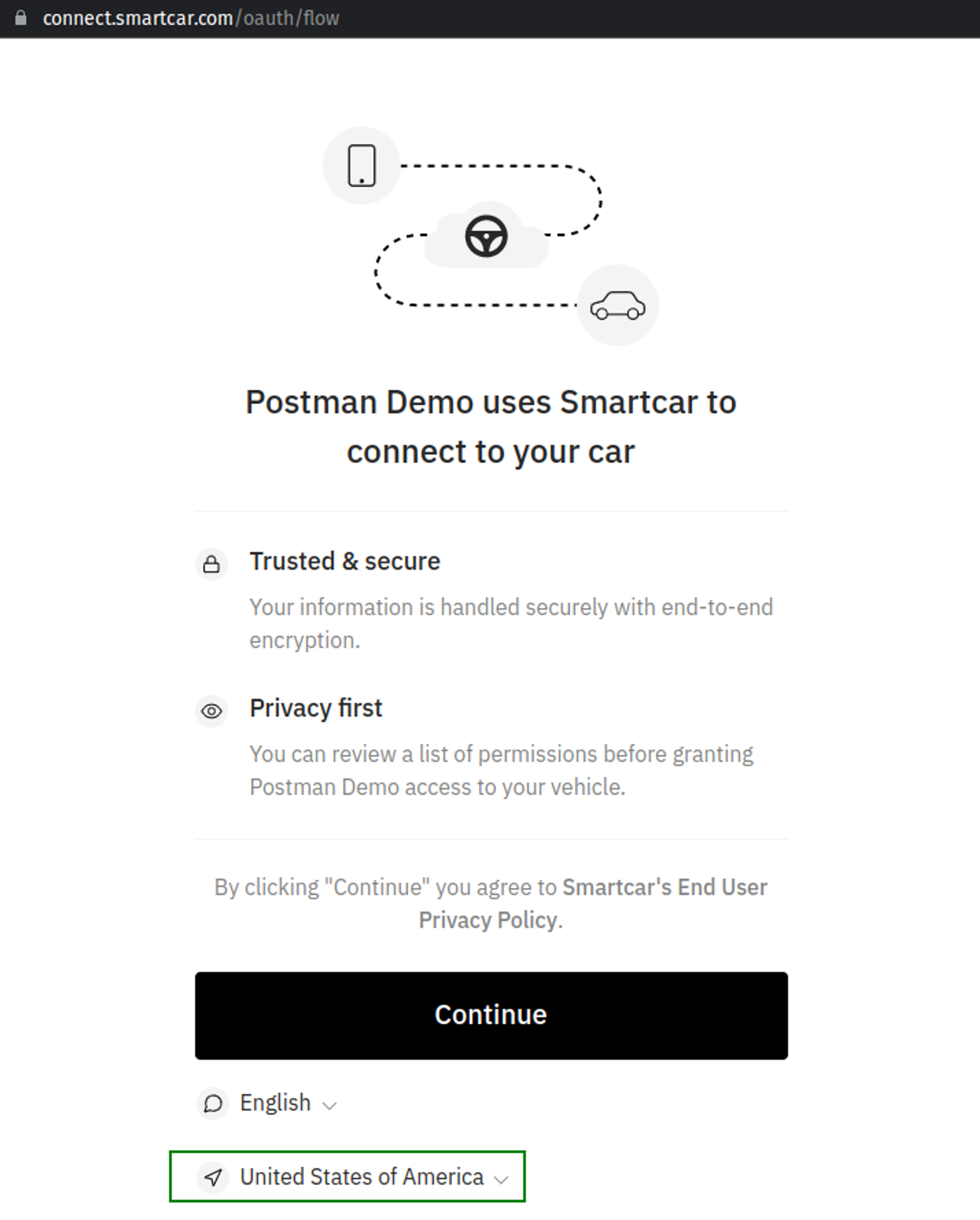
Before hitting Continue, make sure to select a country from the dropdown appropriate to the region you selected for your simulated vehicle.
## Connecting to a vehicle
If configured correctly, when you click **Get New Access Token** in Postman, you should see the first screen of the Connect flow.
Before hitting Continue, make sure to select a country from the dropdown appropriate to the region you selected for your simulated vehicle.
 Continue through the Connect flow, select the brand of your simulated vehicle and enter in the credentials you were issued for your simulated vehicle.
After accepting the permissions you’ll be met with the following screen:
Continue through the Connect flow, select the brand of your simulated vehicle and enter in the credentials you were issued for your simulated vehicle.
After accepting the permissions you’ll be met with the following screen:
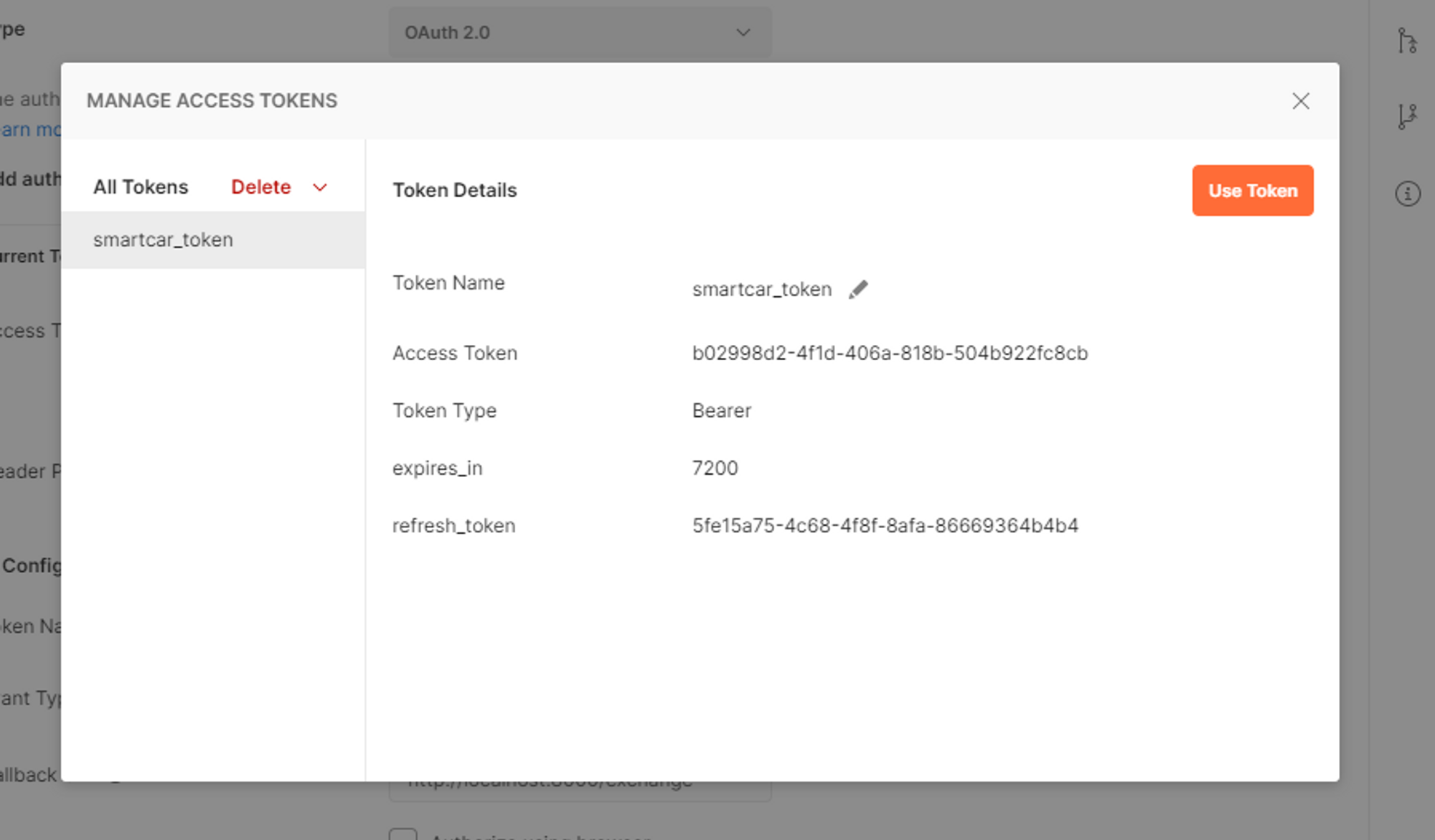 Hit Use Token. You should see Access Token under Current Token populate with the access\_token from the popup. Using this access\_token you can make API requests to Smartcar's API.
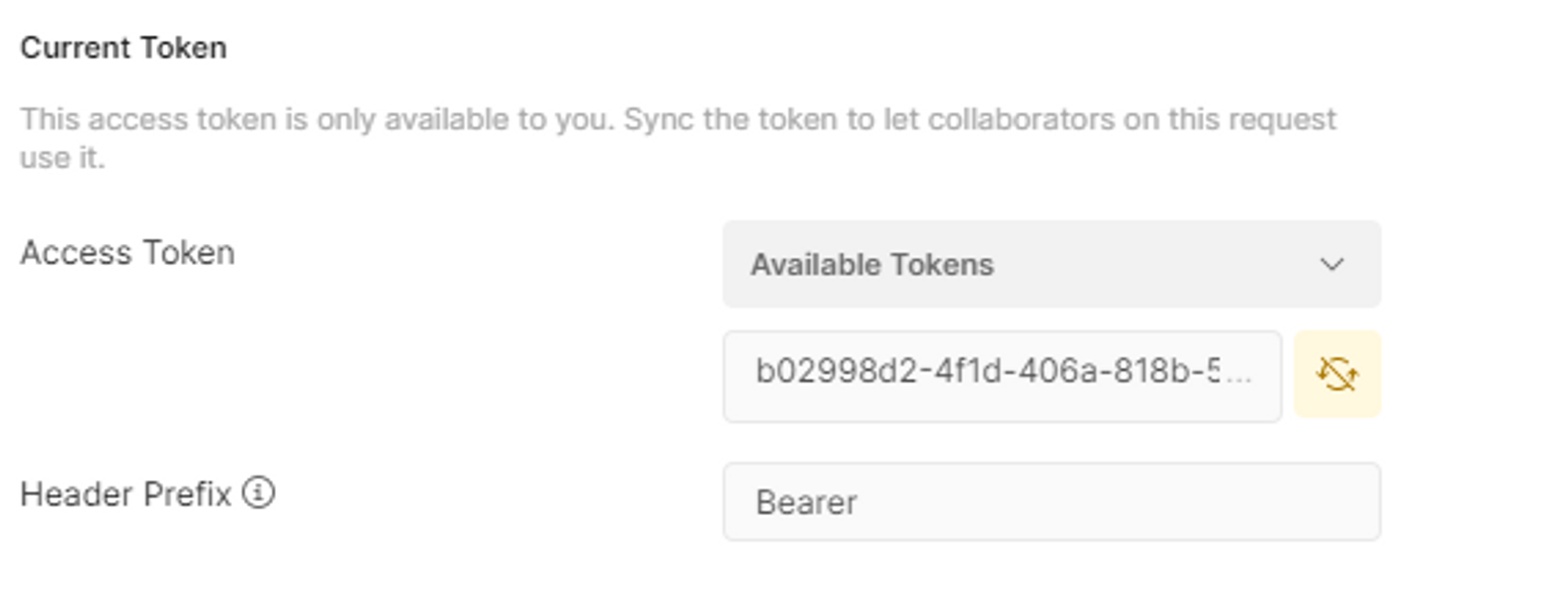
Access tokens are valid for **1 hour**. When the token expires, request a new one from the [token endpoint](/api-reference/authorization/request-access-token) using the Client Credentials flow. There is no refresh token.
## Making an API request
Thanks to Postman, requests in the collection will inherit the `access_token` from the OAuth 2.0 Authorization flow we went through in the steps above.
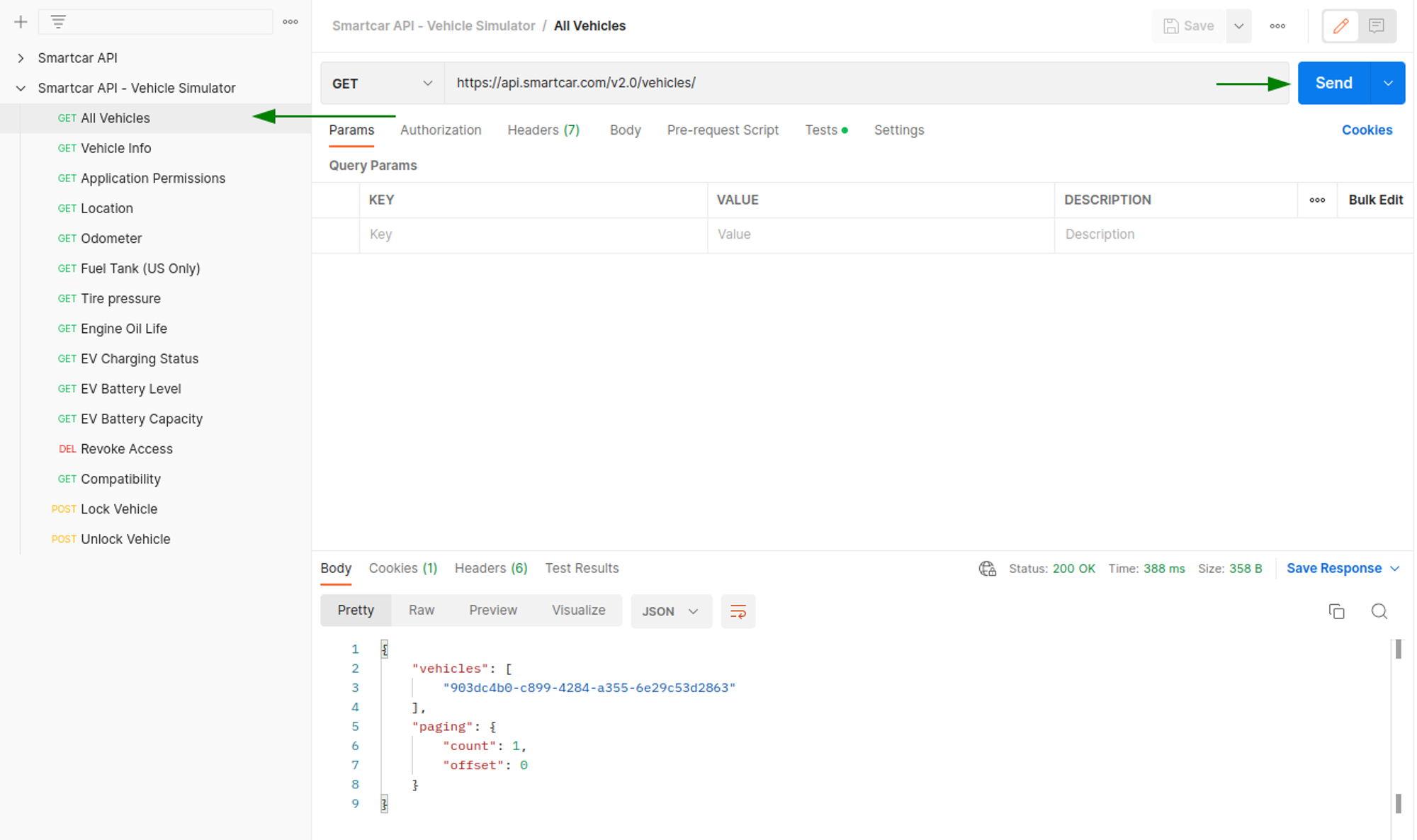
In order to make API requests, we’ll need to first get a Smartcar `vehicle Id`. A `vehicle Id` is a unique identifier for a vehicle on Smartcar’s platform.
This can be done with the `All Vehicles` request. Making this request will assign the `vehicle Id` to the `{{vehicle_id}}` variable for other requests in the Collection.
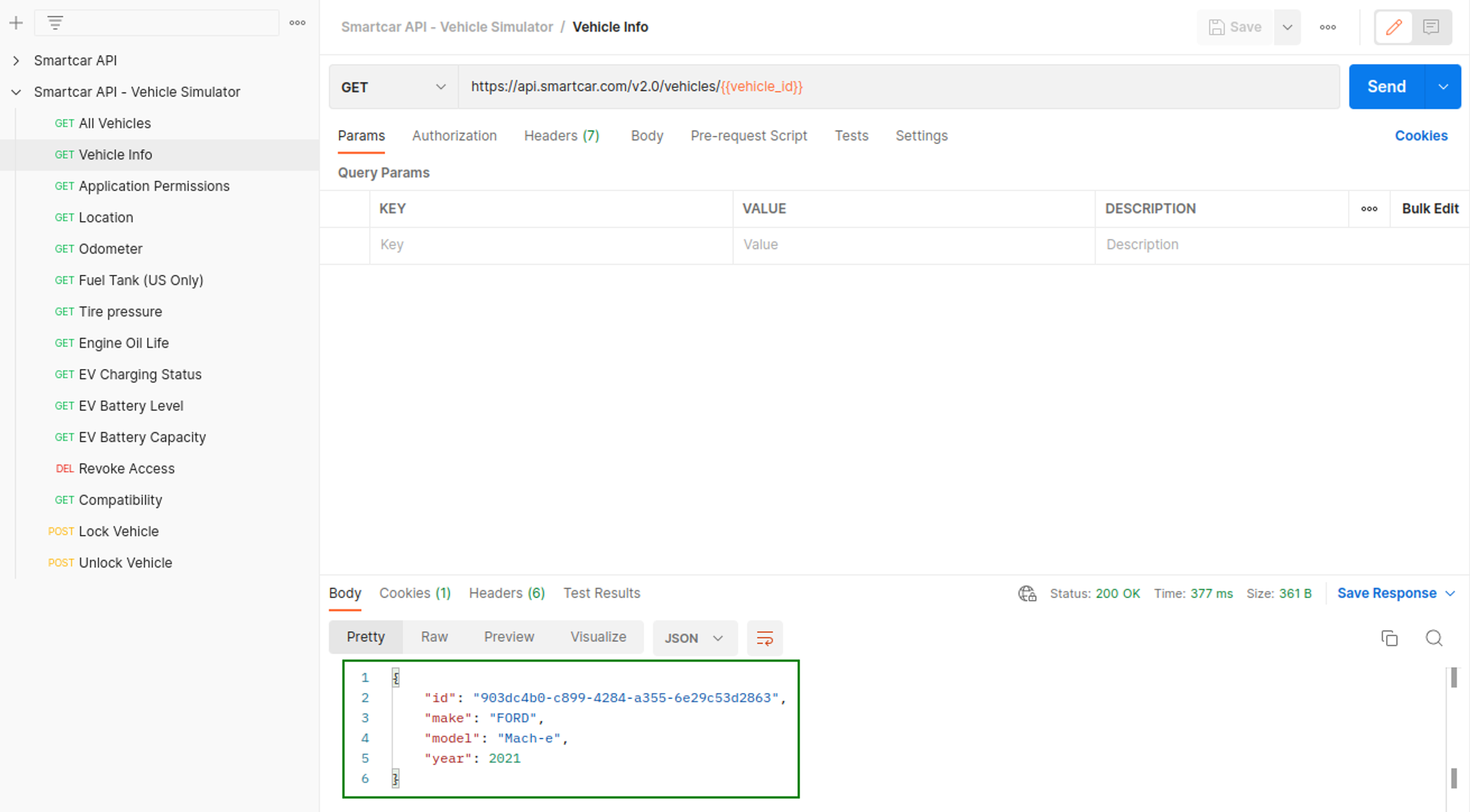
Now that you've got a vehicle Id, you can make a request to other endpoints. Hitting Vehicle Info, we can see the MMY of the vehicle.
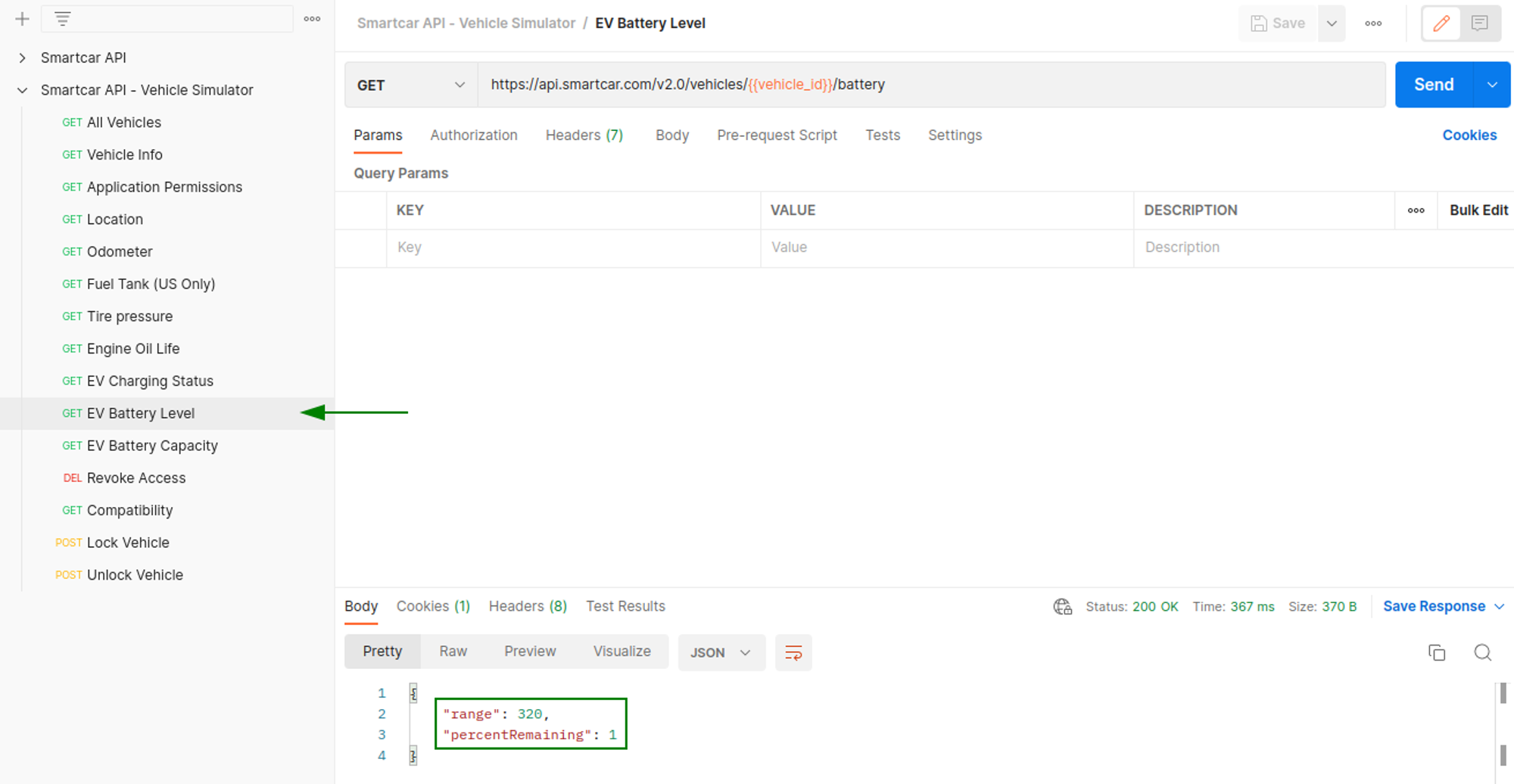
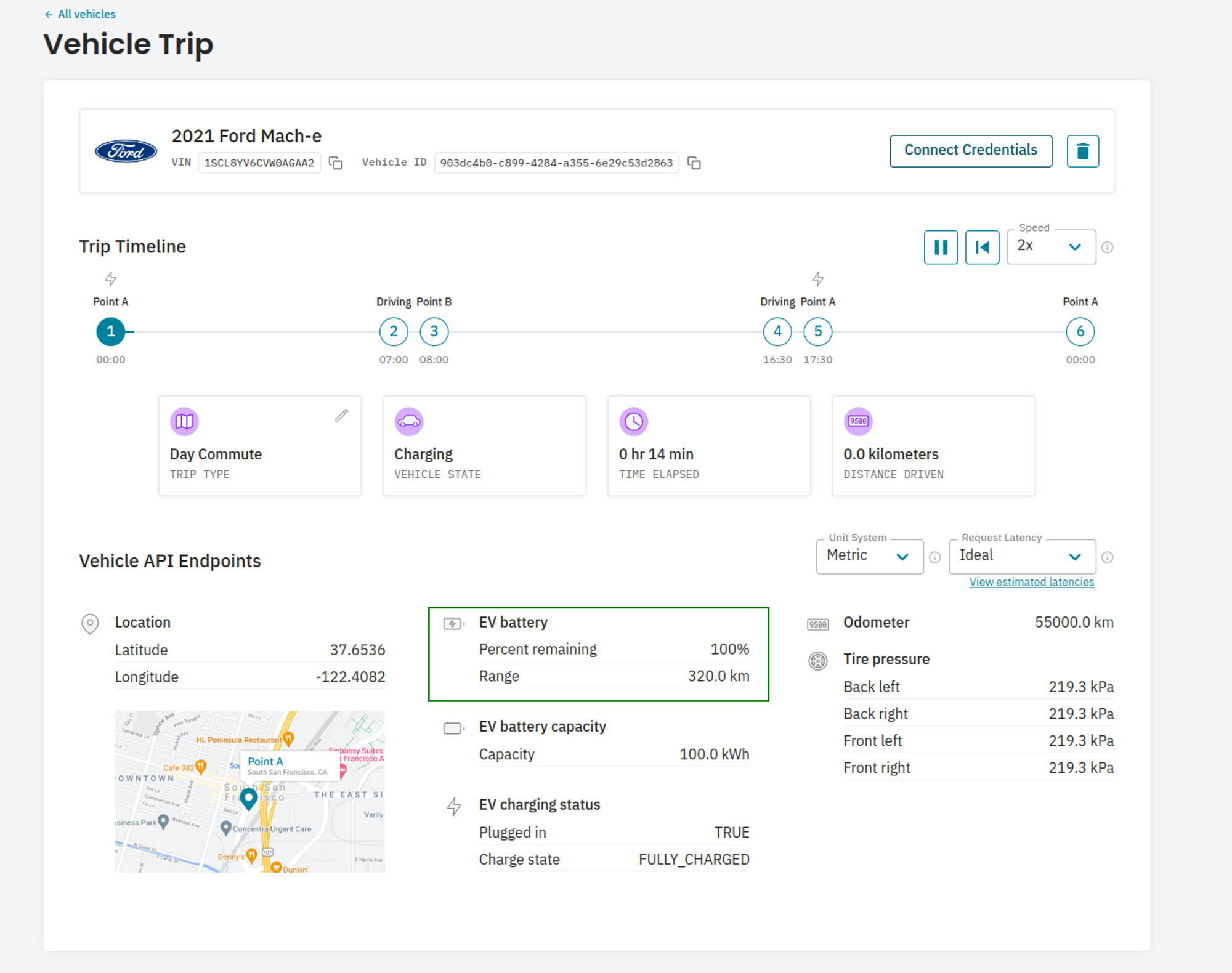
Checking `EV Battery Level`, we can see the response matches the vehicle state on the simulator
## Troubleshooting
* Check that you’re launching Connect in simulated mode
* If you’re still running into an error make sure you’ve selected a country that matches the region you selected for your simulated vehicle.
* Check that the vehicle you’ve created supports the endpoint. Select View Estimated Latencies to see a list of endpoints supported for the vehicle.
* If you’re still running into the error, check that you’ve requested the appropriate permission in the scope parameter of the Connect URL.
You can always check the `/permissions` endpoint to see what endpoints you have access to.