> ## Documentation Index
> Fetch the complete documentation index at: https://smartcar.com/docs/llms.txt
> Use this file to discover all available pages before exploring further.
# Scheduled Webhooks
> Scheduled webhooks make it incredibly easy to receive vehicle data on a cadence of your choosing. You can set up a webhook for any Smartcar endpoint that allows you to read data from a vehicle.
**This webhook type is deprecated.** Scheduled webhooks are no longer available for new integrations. See the [Webhooks Overview](/integrations/webhooks/overview) for the current approach to receiving vehicle data via webhooks.
This tutorial is split into four steps:
1. Creating your webhook
2. Verifying your callback URI
3. Confirmation with a test payload
4. Subscribing your first vehicle
# Prerequisites
For this tutorial it is recommended to have the following in place:
* To receive webhooks you'll need to set up a callback URI on your server.
* To [subscribe](/api-reference/webhooks/subscribe-webhook) a vehicle you'll want to have [Connect](/connect/dashboard-config) set up.
# Creating your first webhook
1. Navigate to the **Webhooks** section of Dashboard and hit **+ Add Webhook**.
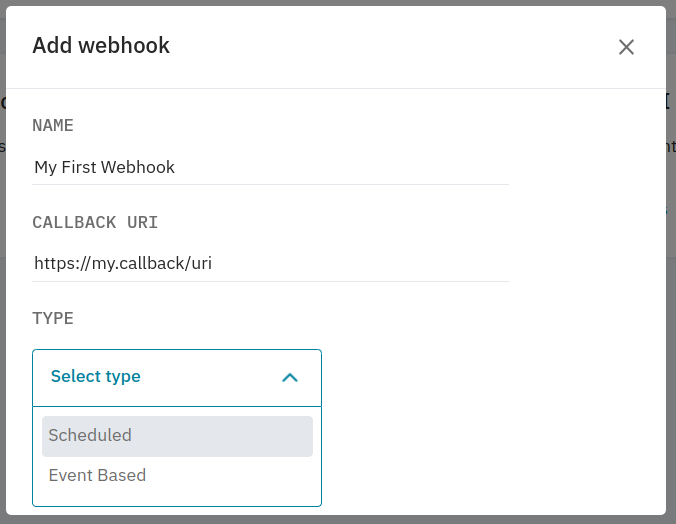
2. Next, name your webhook, enter in your callback URI, and select **Scheduled** as the type.
 3. After selecting the type, you'll need to:
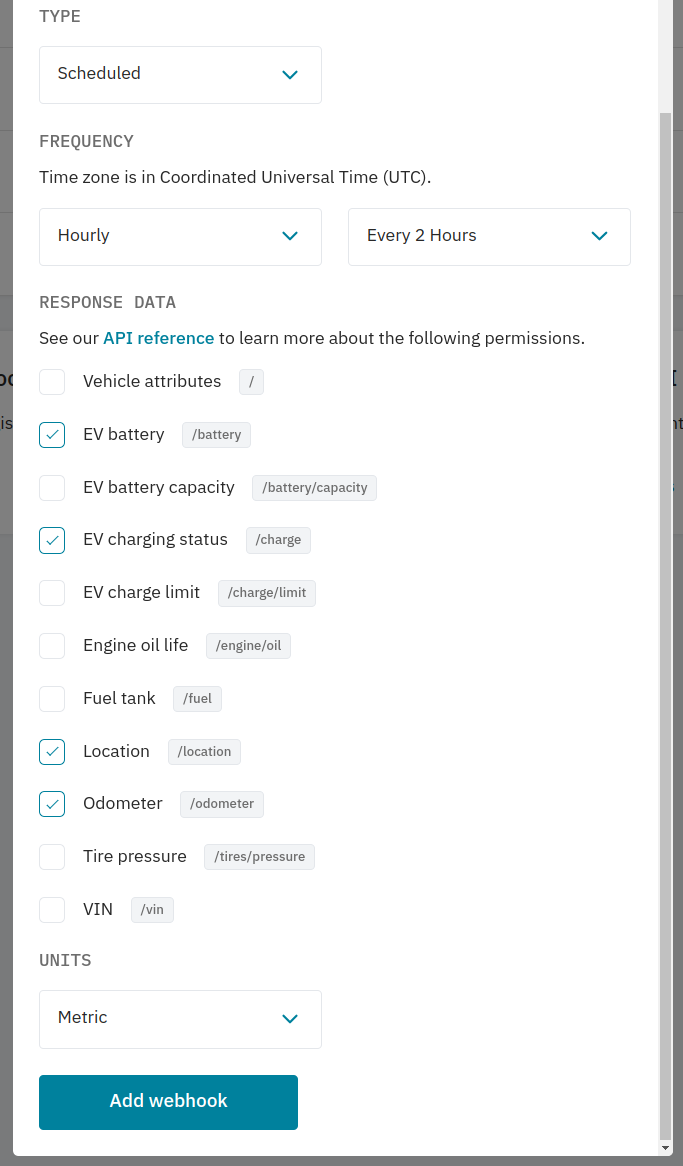 * set how often you want to receive data
* select which endpoints you want to receive data from
* select the units you want to receive data
4. Once you're happy with the configuration, hit **Add Webhook** and move on to verifying your callback URI.
# Verifying your callback URI
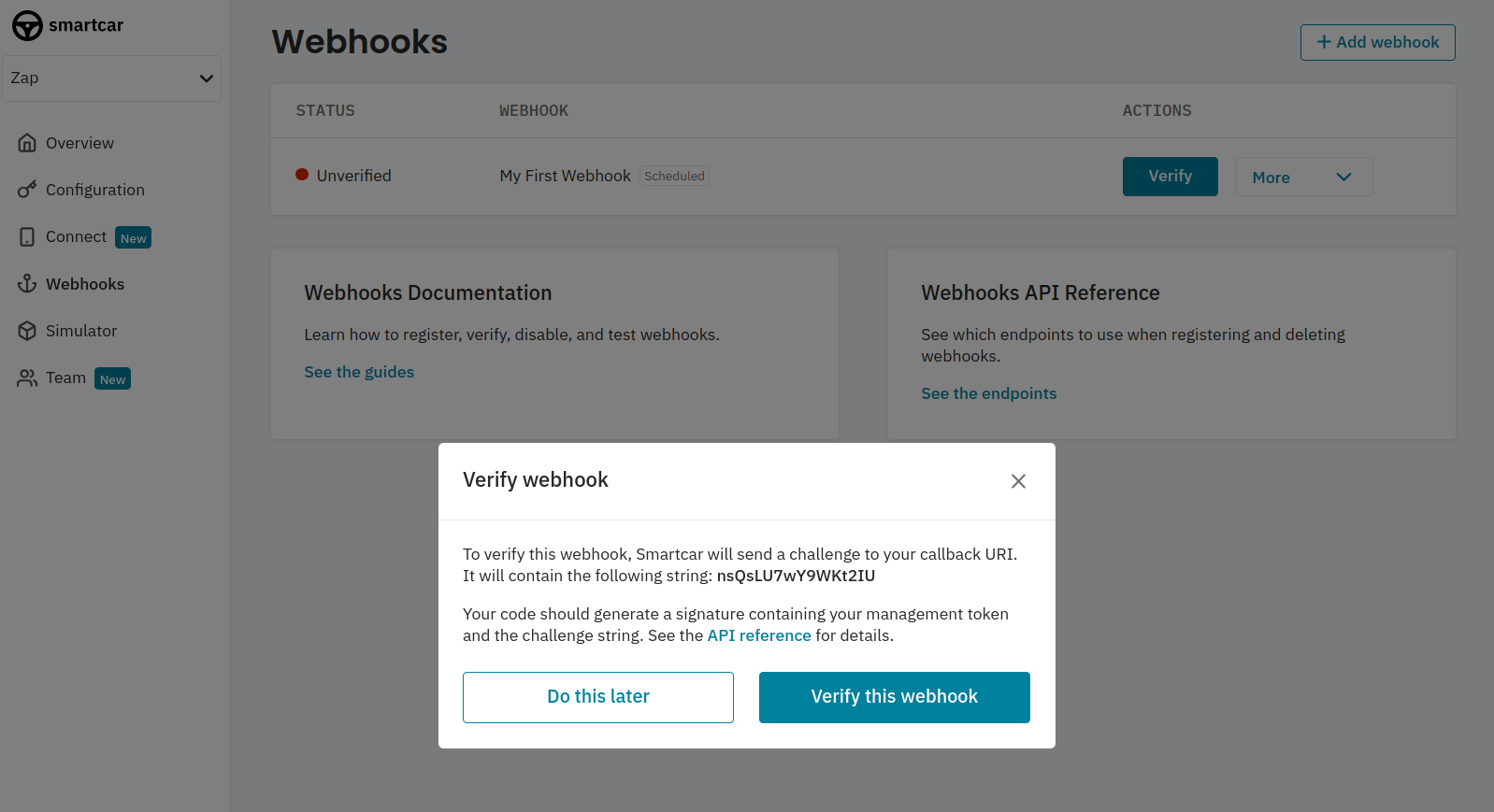
After adding your webhook, you'll be prompted to verify it. After hitting **Verify this webhook** Smartcar will post a challenge request
to your callback URI to ensure we're sending payloads to the correct place.
* set how often you want to receive data
* select which endpoints you want to receive data from
* select the units you want to receive data
4. Once you're happy with the configuration, hit **Add Webhook** and move on to verifying your callback URI.
# Verifying your callback URI
After adding your webhook, you'll be prompted to verify it. After hitting **Verify this webhook** Smartcar will post a challenge request
to your callback URI to ensure we're sending payloads to the correct place.
 See the [callback verification](/integrations/webhooks/callback-verification) section on our API Reference for instructions on how to format your response.
# Confirmation with a test payload
Once verified you can send a test payload to your callback URI. Payloads from vehicles will have `eventName` set to `scheduled`.
The `mode` field will reflect the type of vehicle you've subscribed - either `live`, `test` or `simulated`.
```json Test Request Body theme={null}
{
"version": "2.0",
"webhookId": "6f9c7e43-2278-4a9b-b273-cdacab9ed83c",
"eventName": "scheduled",
"mode": "test",
"payload": {
"vehicles": [
{
"vehicleId": "1a9fdd59-b65e-4bf1-8264-5448812eac83",
"requestId": "6c22cd5c-34df-48ae-ad90-b324170629be",
"data": [
{
"path": "/",
"code": 200,
"body": {
"id": "1a9fdd59-b65e-4bf1-8264-5448812eac83",
"make": "BMW",
"model": "i3 94 (+ REX)",
"year": 2017
},
"headers": {}
},
{
"path": "/fuel",
"code": 200,
"body": {
"range": 44.12,
"percentRemaining": 0.57,
"amountRemaining": 1.32
},
"headers": {
"sc-data-age": "2020-05-11T23:44:31.000Z",
"sc-unit-system": "imperial"
}
},
{
"path": "/vin",
"code": 200,
"body": {
"vin": "WBY1Z8C54HV550878"
},
"headers": {}
}
],
"timestamp": "2020-05-13T22:00:01.288Z"
}
]
}
}
```
```json Test Request Headers theme={null}
{
"sc-signature": "61e60e2e149ccc0c63680ca3a9df09e071ea450dffc1f0e844f962f9df019b44",
"content-type": "application/json",
"user-agent": "Smartcar-Webhooks/2.0",
}
```
See the [callback verification](/integrations/webhooks/callback-verification) section on our API Reference for instructions on how to format your response.
# Confirmation with a test payload
Once verified you can send a test payload to your callback URI. Payloads from vehicles will have `eventName` set to `scheduled`.
The `mode` field will reflect the type of vehicle you've subscribed - either `live`, `test` or `simulated`.
```json Test Request Body theme={null}
{
"version": "2.0",
"webhookId": "6f9c7e43-2278-4a9b-b273-cdacab9ed83c",
"eventName": "scheduled",
"mode": "test",
"payload": {
"vehicles": [
{
"vehicleId": "1a9fdd59-b65e-4bf1-8264-5448812eac83",
"requestId": "6c22cd5c-34df-48ae-ad90-b324170629be",
"data": [
{
"path": "/",
"code": 200,
"body": {
"id": "1a9fdd59-b65e-4bf1-8264-5448812eac83",
"make": "BMW",
"model": "i3 94 (+ REX)",
"year": 2017
},
"headers": {}
},
{
"path": "/fuel",
"code": 200,
"body": {
"range": 44.12,
"percentRemaining": 0.57,
"amountRemaining": 1.32
},
"headers": {
"sc-data-age": "2020-05-11T23:44:31.000Z",
"sc-unit-system": "imperial"
}
},
{
"path": "/vin",
"code": 200,
"body": {
"vin": "WBY1Z8C54HV550878"
},
"headers": {}
}
],
"timestamp": "2020-05-13T22:00:01.288Z"
}
]
}
}
```
```json Test Request Headers theme={null}
{
"sc-signature": "61e60e2e149ccc0c63680ca3a9df09e071ea450dffc1f0e844f962f9df019b44",
"content-type": "application/json",
"user-agent": "Smartcar-Webhooks/2.0",
}
```
# Subscribing your first vehicle
Now you've got your webhook set up, you can subscribe vehicles to start getting data at your desired frequency.
If you haven't done so already, please set up the [Connect](connect/dashboard-config) for your application.
After receiving your initial `ACCESS_TOKEN` from the [auth code exchange](/api-reference/authorization/auth-code-exchange) step for Connect,
you'll first want to hit the [List Connections](/api-reference/list-connections) endpoint to fetch the Smartcar
`vehicle_id`s of the authorized vehicles.
With your `ACCESS_TOKEN` and `WEBHOOK_ID` you can hit the [Subscribe](/api-reference/webhooks/subscribe-webhook)
endpoint for each `vehicle_id` to start receiving data.
# FAQs
Data will post to the endpoint depending on your selected cadence. For example:
* if a car is subscribed to an hourly interval webhook at 15:45 UTC, you'll get start to get data after 16:00UTC.
* if a car is subscribed to a monthly interval, we'll process the webhooks at 00:00UTC for the selected day.
No, you'll need to set up a webhook for each webhook type.
Yes! You can distinguish between webhook types based on the `eventName` field - `scheduled` or `eventBased`.
* Once a webhook is configured, we’ll begin sending events to your Callback URI on the cadence that you’ve chosen.
We’ll expect a 2xx response to each. In the event that we don’t receive a 2xx response, we’ll retry 5 times over the next 10 minutes.
**If we continue not to receive a successful response, we’ll automatically disable your webhook.**
* Check that your server didn't experience down time for more than 10 minutes recently resulting in 2XX responses not being sent back to Smartcar.
* If you haven't made any major changes to your callback URI, commonly our request payload may have hit the request size limit for your server.
While we aim for 1 to 5 minutes after your selected cadence, the delivery time largely depends on the number of vehicles you have subscribed as
well as the average OEM latency. Smartcar will try to fulfill requests for your webhook within 15 minutes of the scheduled time. If we were unable
to fulfill a request during that time, we'll try again over the course of subsequent 15 minute intervals and post them to your webhook.