> ## Documentation Index
> Fetch the complete documentation index at: https://smartcar.com/docs/llms.txt
> Use this file to discover all available pages before exploring further.
# Diagnostic Webhooks (Deprecated)
> Diagnostic webhooks send events whenever a state change occurs within the vehicle's Health Status or a Diagnostic Trouble Code (DTC) is reported
**This webhook type is deprecated.** Diagnostic webhooks are no longer available for new integrations. See the [Webhooks Overview](/integrations/webhooks/overview) for the current approach to receiving vehicle data via webhooks.
## Beta
Diagnostic webhooks are available in beta throughout December 2024 - January 2025 for organizations with Enterprise plans with Smartcar.
## Brand Support
Diagnostics provide visibility into Diagnostic Trouble Codes (DTCs) for GM vehicles and System Status information for GM and FCA vehicles.
## Supported Events
[Diagnostic Trouble Codes (DTCs)](https://smartcar.com/docs/api-reference/get-dtcs), which are 5-digit codes that indicate the component and fault type. DTC webhooks will send events for each active DTC including a timestamp it became active. A webhook event will also trigger when a DTC is no longer active.
[System Status](https://smartcar.com/docs/api-reference/get-system-status), where an OEM application’s “Vehicle Health” or “System Health” reports provide a list of components and their health status. System Status webhooks will send events whenever a system reports a change from Healthy to Alert and vice-versa. A [list of diagnostic systems](https://smartcar.com/docs/help/diagnostic-systems) is available in our Help Center.
## Prerequisites
For this tutorial it is recommended to have the following in place:
* To receive webhooks you’ll need to set up a callback URI on your server.
* To [**subscribe**](https://smartcar.com/docs/api-reference/webhooks/subscribe-webhook) a vehicle you’ll want to have [**Connect**](https://smartcar.com/docs/connect/dashboard-config) integrated into your application.
## Setting up a Diagnostic Webhook
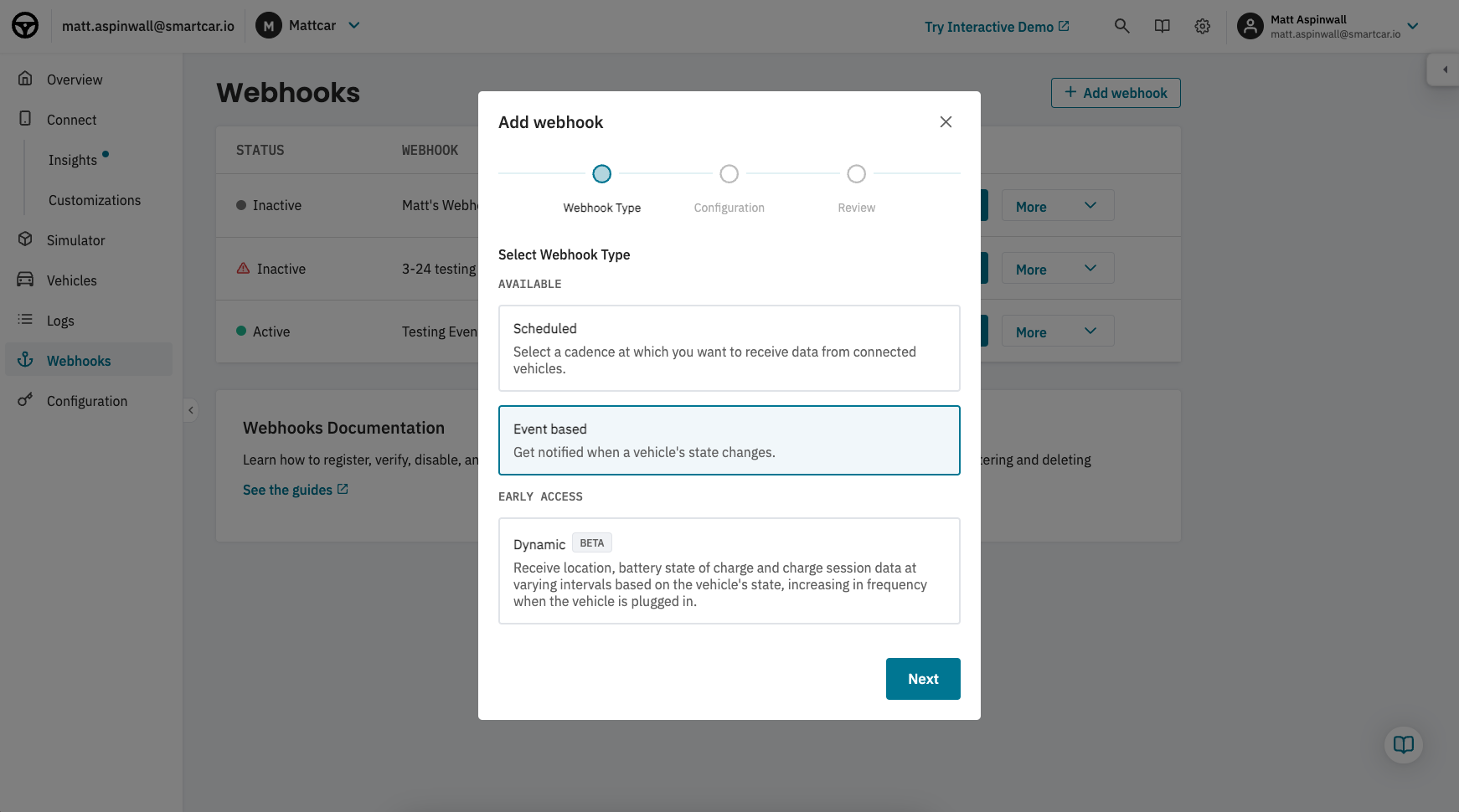
Navigate to **Webhooks** from the Smartcar Dashboard, select **+ Add webhook** and select **Event-based** from the Webhooks config wizard.
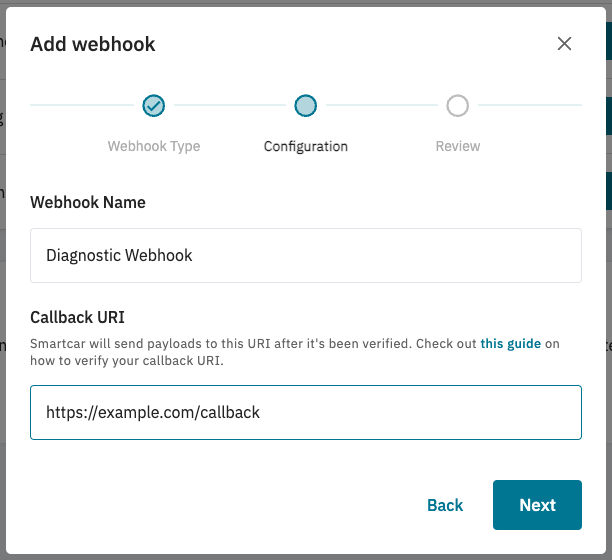
 Name your webhook and specify a `callback URI`. Your `callback URI` is where Smartcar will send payloads from vehicles connected to your webhook. Click **Next**.
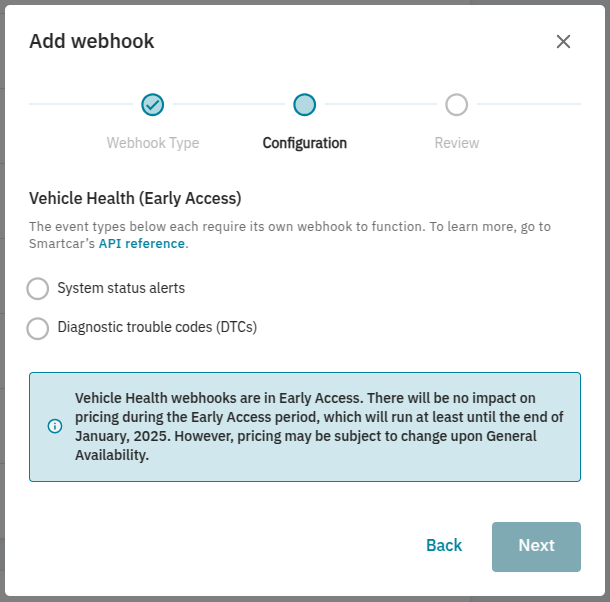
 Select which event types you wish to receive from System Status or Diagnostic Trouble Codes and hit Add. To receive both event types, create a second webhook.
 Hit **Add** when ready.
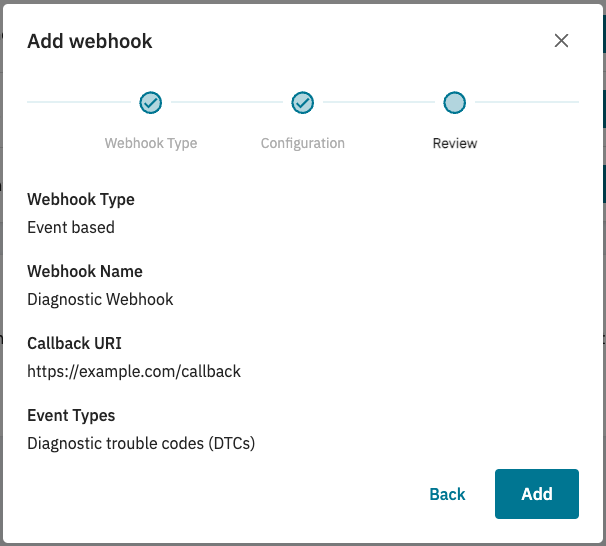
After adding your webhook, you’ll need to verify your callback URI. This is to ensure Smartcar is sending data to the correct place!
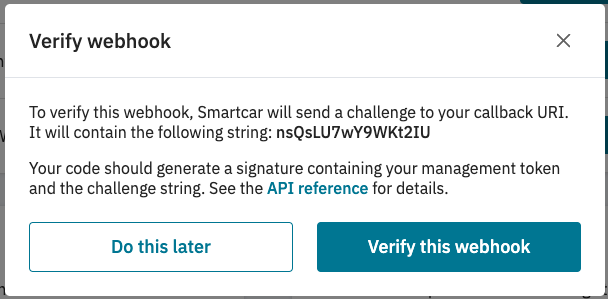 Please see our API reference on how to [verify a webhook](/integrations/webhooks/callback-verification), or **Part II** on [this blog post](https://smartcar.com/blog/how-to-use-scheduled-webhooks#-part-ii-verify-webhook) for a more in depth guide.
## Subscribing vehicles to a webhook
Now you’ve got your webhook set up, you can subscribe vehicles to start getting data. If you haven’t done so already, please set up [Connect](http://localhost:3000/connect/dashboard-config) for your application.
After going through Connect and receiving your initial `access_token`, you’ll first want to hit the [All Vehicles](/api-reference/all-vehicles) endpoint to fetch the Smartcar `vehicle_ids` of the authorized vehicles.
Please see our API reference on how to [verify a webhook](/integrations/webhooks/callback-verification), or **Part II** on [this blog post](https://smartcar.com/blog/how-to-use-scheduled-webhooks#-part-ii-verify-webhook) for a more in depth guide.
## Subscribing vehicles to a webhook
Now you’ve got your webhook set up, you can subscribe vehicles to start getting data. If you haven’t done so already, please set up [Connect](http://localhost:3000/connect/dashboard-config) for your application.
After going through Connect and receiving your initial `access_token`, you’ll first want to hit the [All Vehicles](/api-reference/all-vehicles) endpoint to fetch the Smartcar `vehicle_ids` of the authorized vehicles.
With your `access_token` and `webhook_id` you can hit the [Subscribe](/api-reference/webhooks/subscribe-webhook) endpoint for each `vehicle_id` to start receiving data.
## Example Diagnostic Trouble Code Payload
```json Example Response theme={null}
{
"version": "3.0",
"webhookId": "abde94ff-d57d-43b9-8d09-6020db2d977a",
"deliveryId": "aadc13aa-c838-41ba-b5c5-0c655ec2234a",
"deliveryTime": "2022-04-06T01:50:00.000Z",
"mode": "live",
"type": "EVENT_DELIVERY",
"data": {
"events": [
{
"eventId": "1713eab1-eebc-4b4e-9433-0f2a488851c2",
"vehicleId": "9af13248-3b73-4c9d-9a4b-d937ce6bc8e2",
"userId": "9a2630ca-9496-4927-b6dc-991f47e5ed14",
"eventTime": "2022-04-06T01:48:22.845Z",
"eventType": "DIAGNOSTIC_TROUBLE_CODES",
"codes": [
{
"code": "P302D",
"timestamp": "2024-09-05T14:48:00.000Z"
},
{
"code": "xxxxx",
"timestamp": null
},
// ...
]
}
]
}
}
```
## Response
The unique ID of the event delivered.
The ID for the vehicle.
The ID for the user impacted by the event.
The date and time the event was reported.
Indicates the event is a DTC.
the Diagnostic Trouble Code.
The date and time the DTC became active. ISO 8601, millisecond precision, UTC time zone.
## Example System Status Payload
```json Example Response theme={null}
{
"version": "3.0",
"webhookId": "abde94ff-d57d-43b9-8d09-6020db2d977a",
"deliveryId": "aadc13aa-c838-41ba-b5c5-0c655ec2234a",
"deliveryTime": "2022-04-06T01:50:00.000Z",
"mode": "live",
"type": "EVENT_DELIVERY",
"data": {
"events": [
{
"eventId": "1713eab1-eebc-4b4e-9433-0f2a488851c2",
"vehicleId": "9af13248-3b73-4c9d-9a4b-d937ce6bc8e2",
"userId": "9a2630ca-9496-4927-b6dc-991f47e5ed14",
"eventTime": "2022-04-06T01:48:22.845Z",
"eventType": "DIAGNOSTIC_SYSTEM_ALERTS",
"alerts": [
{
"systemId": "SYSTEM_TPMS",
"status": "ALERT",
"description": "Left rear tire sensor battery low"
},
{
"systemId": "SYSTEM_AIRBAG",
"status": "ALERT",
"description": null
}
// ...
]
}
]
}
}
```
## Response
The unique ID of the event delivered.
The ID for the vehicle.
The ID for the user impacted by the event.
The date and time the event was reported.
Indicates the event is a System Alert
the system reporting alert or OK status. See [Smartcar Systems](https://smartcar.com/docs/help/diagnostic-systems).
Either "ALERT" or "OK".
A plaintext, readable description when available.
The date and time the DTC became active. ISO 8601, millisecond precision, UTC time zone.
## FAQs
Smartcar will handle regular polling for diagnostic events to provide them as quickly as possible.
Yes! You can distinguish between webhook types based on the `eventName` field. Dynamic Webhooks will have `eventName` set to `dynamic`.
Smartcar will attempt to resend payloads with an exponential backoff. Once your server is back online you'll continue to receive data from the vehicles.
* Once a webhook is configured and a vehicle is subscribed, we'll begin sending data to your Callback URI.
We’ll expect a 2xx response to each. In the event that we don’t receive a 2xx response, we’ll retry 6 times with exponential backoff.
**If we continue not to receive a successful response, we’ll automatically disable your webhook.**
* If you haven't made any major changes to your callback URI, commonly our request payload may have hit the request size limit for you server.
Smartcar will attempt to get data from the vehicle with retries. However if we are unable to we'll return the relevant error response in the payload for that vehicle.
For example, if a vehicle owner changes the credentials to their connected services account we'll return a [CONNECT\_SERVICES\_ACCOUNT:AUTHENTICATION\_FAILED](/errors/api-errors/connected-services-account-errors#authentication-failed) error prompting you to have the vehicle owner go through Connect again to reauthenticate their vehicle.
To unsubscribe a vehicle you can hit the [unsubscribe](/api-reference/webhooks/unsubscribe-webhook) endpoint or [disconnect](/api-reference/remove-connection) the vehicle from your application.