> ## Documentation Index
> Fetch the complete documentation index at: https://smartcar.com/docs/llms.txt
> Use this file to discover all available pages before exploring further.
# React Tutorial
> In this tutorial, we will use the JavaScript SDK to integrate Connect into your application.
Our frontend SDKs handle getting an authorization code representing a vehicle owner's consent for your application to interact with their vehicle
for the requested permissions. In order to make requests to a vehicle, please use one of our [backend SDKs](/api-reference/api-sdks).
For security, token exchanges and requests to vehicles **should not** be made client side.
# Overview
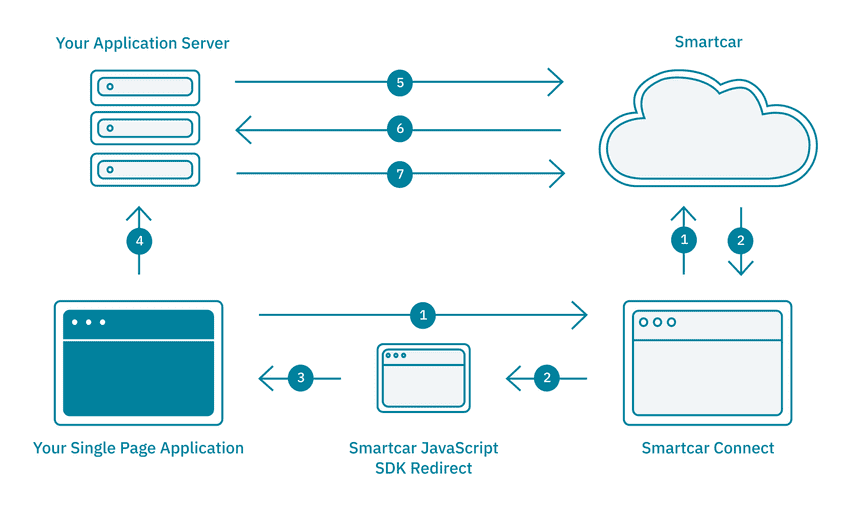
1. The Single-Page Application launches a pop-up window with Smartcar Connect to request access to a user’s vehicle.
It does so by using the Smartcar JavaScript SDK. On Connect, the user logs in with the username and password for
their vehicle’s connected services account and grants the Application access to their vehicle.
2. The user’s browser is redirected to a specified Smartcar-hosted `REDIRECT_URI` - the Smartcar JavaScript SDK redirect page.
3. The Smartcar JavaScript SDK redirect page will receive a `user_id` and `state` as query parameters. The redirect page will then
send these to the Single-Page Application’s `onComplete` callback using the `postMessage` web API. **This step is handled entirely
by the JavaScript SDK.**
4. The Single-Page Application sends the received `user_id` to the Application’s backend service for storage.
5. The Application’s backend authenticates with the Smartcar API using the [OAuth 2.0 Client Credentials flow](/api-reference/authorization/overview) to obtain an application-level access token.
6. Using the access token and the `sc-user-id` header, the Application can now send requests to the Smartcar API. It can access protected resources and send commands
to and from the user’s vehicle via the backend service.
# Prerequisites
* [Sign up](https://dashboard.smartcar.com/signup) for a Smartcar account.
* Make a note of your `CLIENT_ID` and `CLIENT_SECRET` from the **Configuration** section on the Dashboard.
* Add the special JavaScript SDK redirect URI to your application configuration.
* Add the `REACT_APP_SERVER` redirect URI from [Setup step 2.](/getting-started/tutorials/react#setup) to your application configuration.
To use the JavaScript SDK, we require the special redirect URI to provide a simpler flow to retrieve authorization codes.
For this tutorial you can use the following:
`https://javascript-sdk.smartcar.com/v2/redirect?app_origin=http://localhost:3000`
# Setup
1. Clone our repo and install the required dependencies:
```bash theme={null}
$git clone https://github.com/smartcar/getting-started-javascript-sdk-react.git
$cd getting-started-javascript-sdk-react/tutorial
$npm install
```
2. Set the following environment variables. We will be setting up a server later for our React front-end to communicate with.
For now, let’s assume our server is listening on `http://localhost:8000`.
```bash theme={null}
$export REACT_APP_CLIENT_ID=
$export REACT_APP_REDIRECT_URI= https://javascript-sdk.smartcar.com/v2/redirect?app_origin=http://localhost:3000
$export REACT_APP_SERVER=http://localhost:8000
```
Note: If you are using Windows, ensure you are appropriately setting environment variables for your shell.
Please refer to this post which details how to set environment variables on Windows.
# Build your Connect URL
1. Instantiate a `Smartcar` object in the `constructor` of the App component.
```js App.jsx theme={null}
constructor(props) {
...
// TODO: Authorization Step 1: Initialize the Smartcar object
this.smartcar = new Smartcar({
clientId: process.env.REACT_APP_CLIENT_ID,
redirectUri: process.env.REACT_APP_REDIRECT_URI,
scope: ['required:read_vehicle_info'],
mode: 'test',
onComplete: this.onComplete,
});
}
```
2. A single-page application will launch a pop-up window with Smartcar Connect to request access to a user’s vehicle.
On Connect, the user logs in with the username and password for their vehicle’s connected services account and grants
the application access to their vehicle.
To launch Connect, we can use the `openDialog` function that our `Smartcar` object has access to. We can place this is
an `onClick` handler of an HTML button.
```js App.jsx theme={null}
authorize() {
// TODO: Authorization Step 2a: Launch Connect
this.smartcar.openDialog({forcePrompt: true});
}
render() {
// TODO: Authorization Step 2b: Render the Connect component
return ;
}
```
# Handle the response
1. Once a user has authorized the application to access their vehicle, the user is redirected to the `redirect_uri` with an
authorization code as a query parameter and the pop-up dialog is closed. Using the JavaScript SDK, the frontend can
receive this `code` in the `onComplete` callback passed into the `Smartcar` object.
```js App.jsx theme={null}
onComplete(err, code, status) {
//TODO: Authorization Step 3: Receive the authorization code
console.log(code);
//prints out the authorization code
};
```
# Launching Connect
Restart your server, open up your browser and go to `http://localhost:3000/login`. You should be reciderect to Smartcar Connect.
This tutorial configures Connect to launch in `test` mode by default.
In `test` mode, any `username` and `password` is valid for each brand.
Smartcar showcases all the permissions your application is asking for - `read_vehicle_info` in this case.
Once you have logged in and accepted the permissions, you should see your authorization `code` printed to your console.
# Sending the user\_id to your backend
After the user completes the Connect flow, the React application receives a `user_id`. Send this to your backend service for storage — your backend will use it as the `sc-user-id` header when making API requests on behalf of this user.
Token authentication should be handled entirely on your backend using the [OAuth 2.0 Client Credentials flow](/api-reference/authorization/overview).
Your frontend should never handle access tokens directly. The backend obtains a single application-level token
that works across all connected vehicles.
We can add this logic in our `onComplete` callback:
```js App.jsx theme={null}
onComplete(err, userId, status) {
// Send the user_id to your backend for storage
return axios
.post(`${process.env.REACT_APP_SERVER}/connect`, { user_id: userId });
}
```
# Getting data from a vehicle
Once your backend has the `user_id` and an application-level access token, it can send requests to a vehicle using the Smartcar API. The React app will
have to send a request to the backend service which in turn sends a request to Smartcar. We have to do this because
our frontend does not have the access token.
Assuming our backend has a `/vehicle` endpoint that returns the information of a user’s vehicle, we can make this query in
our `completion callback` and set the state of the React app with the returned vehicle attributes.
```js App.jsx theme={null}
onComplete(err, userId, status) {
// Send user_id to backend, then fetch vehicle info
return axios
.post(`${process.env.REACT_APP_SERVER}/connect`, { user_id: userId })
.then(_ => {
return axios.get(`${process.env.REACT_APP_SERVER}/vehicle`);
})
.then(res => {
this.setState({vehicle: res.data});
});
}
```
Now that we have the vehicle attributes, we can render a simple Vehicle component that shows the vehicle attributes in a table.
```js App.jsx theme={null}
render() {
// TODO: Request Step 2b: Get vehicle information
return Object.keys(this.state.vehicle).length !== 0 ? (
) : (
);
}
```
# Setting up your backend
Now that our frontend is complete, we will need to create a backend service that stores the `user_id` and handles API authentication. Your backend will use the [OAuth 2.0 Client Credentials flow](/api-reference/authorization/overview) to obtain an application-level access token and make requests to vehicles.
You can use any of our backend SDKs below to set up the service.
When setting up the environment variables for your backend SDK, make sure to set `REDIRECT_URI` to the custom scheme
used for this tutorial i.e. `https://javascript-sdk.smartcar.com/v2/redirect?app_origin=http://localhost:3000`.