> ## Documentation Index
> Fetch the complete documentation index at: https://smartcar.com/docs/llms.txt
> Use this file to discover all available pages before exploring further.
# Single Sign-on (SSO)
> Smartcar offers SSO through your identity provider (IdP) for Enterprise customers.
## About SSO with Smartcar
Our Dashboard supports SSO integrations with popular identity providers
including:
* Okta
* Microsoft Azure AD
* Google Workspace
* OneLogin
* Ping Identity
* ADFS
* Custom SAML 2.0 providers
To set up SSO for your organization's Dashboard accounts, you'll need to:
1. Be an Owner for an existing Team on an Enterprise plan
2. Verify your domain
3. Configure your identity provider
The following section will guide you through each step of this process.
## Setting up SSO
On Dashboard navigate to **Team settings > Security** and select **Enable SSO**
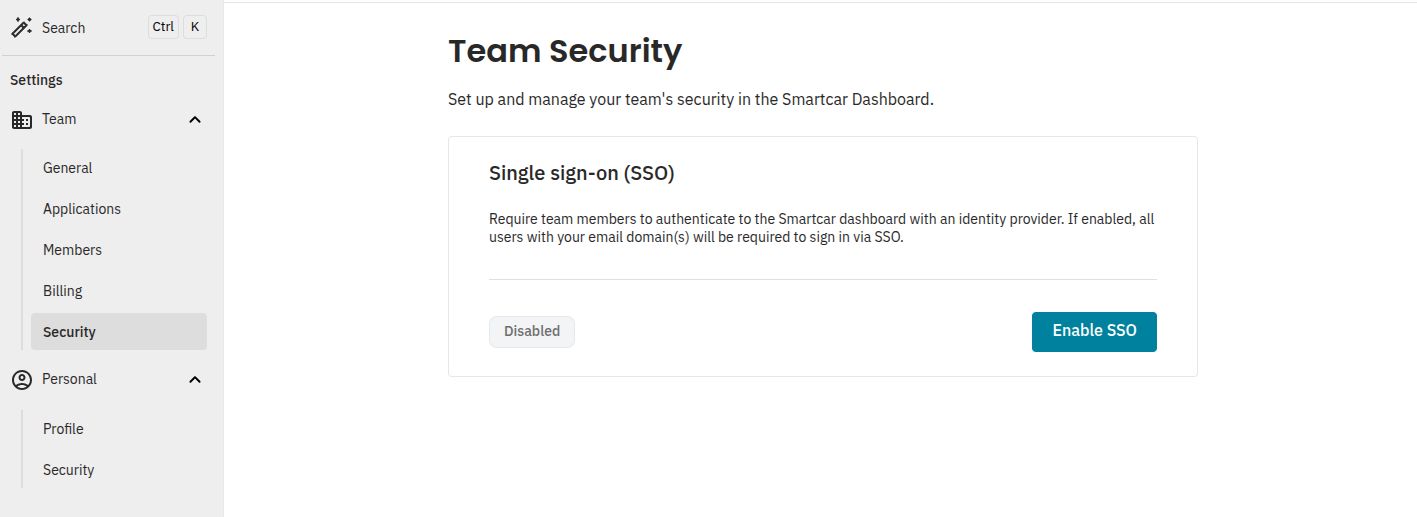 You’ll be redirected to start the SSO configuration process.
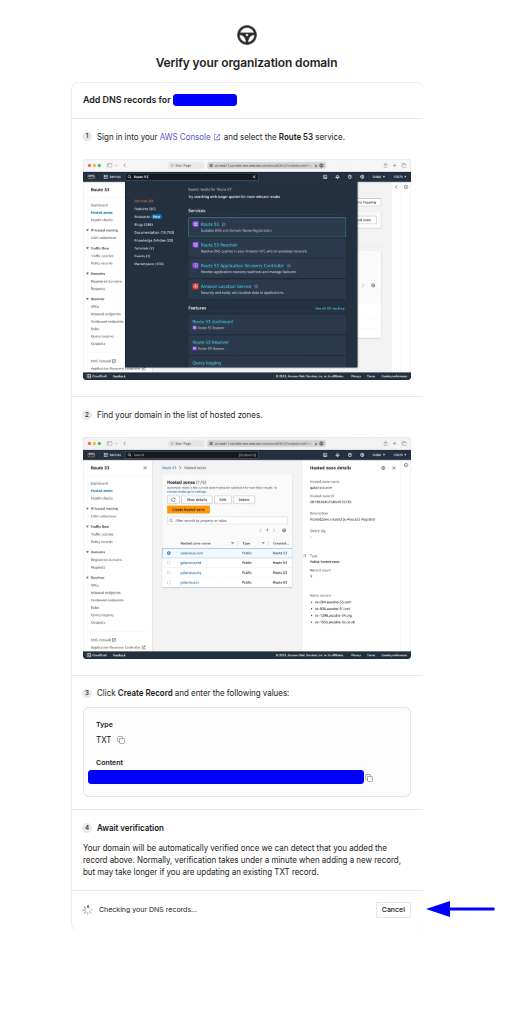
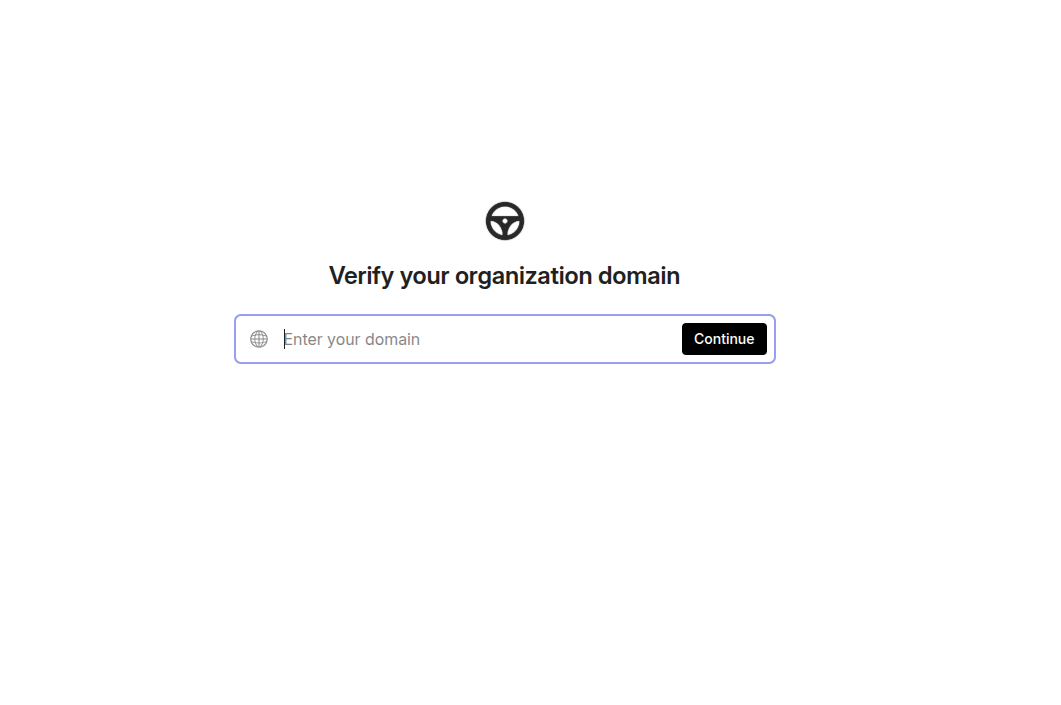 Depending on your DNS provider, you'll receive instructions on how to verify your domain.
 Once your domain is verified, you’ll be able to select your Identity Provider
(IdP).
Once your domain is verified, you’ll be able to select your Identity Provider
(IdP).
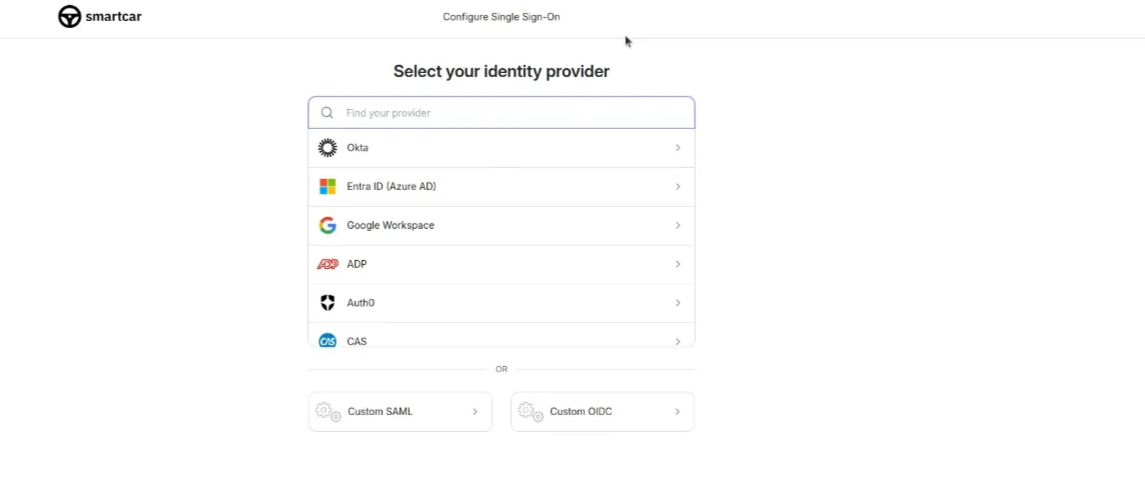 You'll be provided a guide on how to get set up based on your IdP.
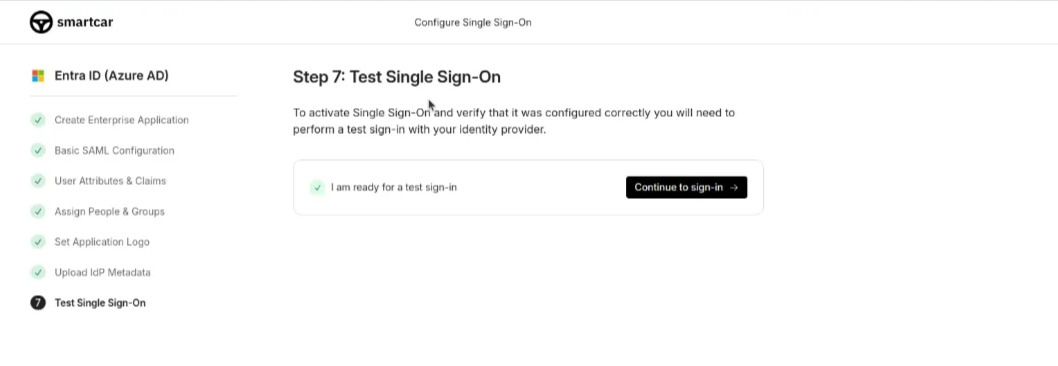
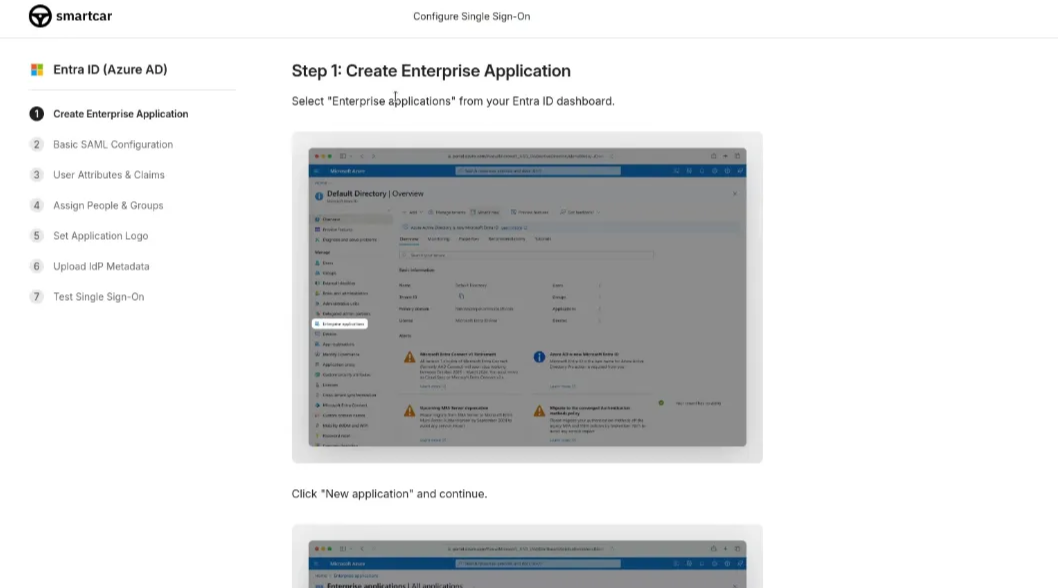 Once you’ve got everything configured, you’ll be prompted to test SSO.
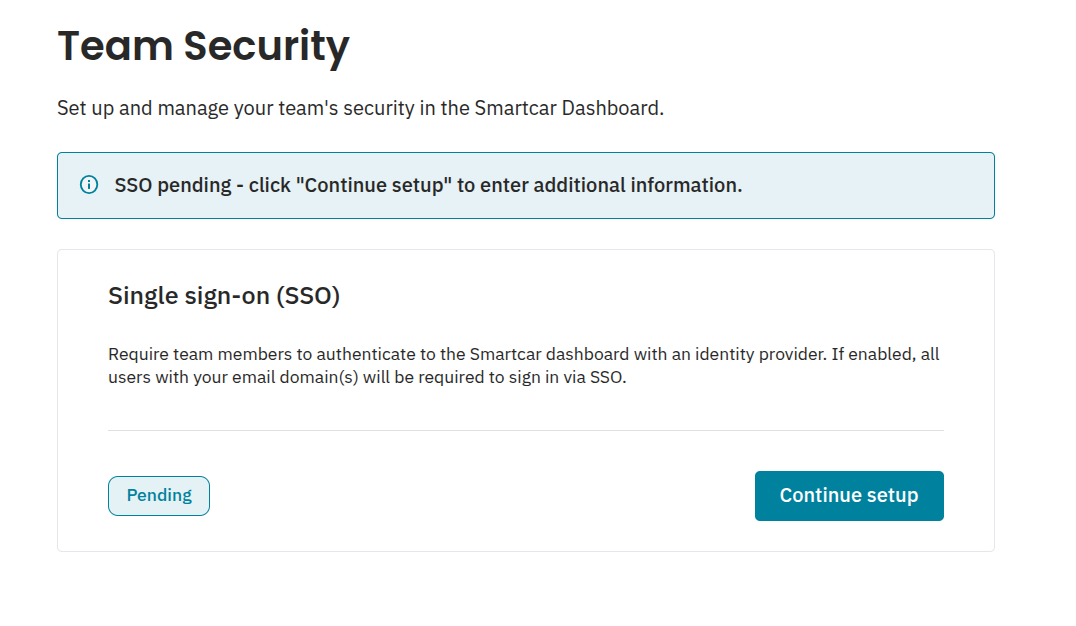
If you exit the flow at any time before finalizing your configuration, you
can jump back in from Dashboard.
 ## Disabling SSO
If you have SSO configured, the Team Owner can disable it from **Team
settings > Security**.
Disabling SSO will require you to go through the whole setup process
again.
## Inviting team members with SSO enabled
Once enabled, you’ll need to add members to your team through your identity
provider. Invites via the Dashboard will be disabled while SSO is enabled.
## Disabling SSO
If you have SSO configured, the Team Owner can disable it from **Team
settings > Security**.
Disabling SSO will require you to go through the whole setup process
again.
## Inviting team members with SSO enabled
Once enabled, you’ll need to add members to your team through your identity
provider. Invites via the Dashboard will be disabled while SSO is enabled.
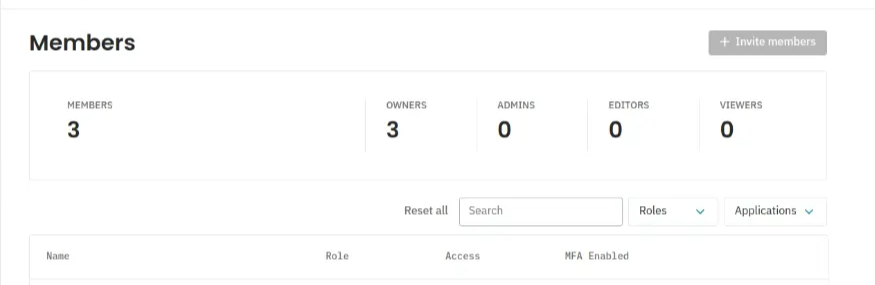 When a newly added member has signed in via SSO, they will have the Viewer role
by default. Other team members with the appropriate role can promote these
members as needed.
If a user creates a Dashboard account with their email prior to being added
to your IdP, they will be added to their own Team initially. When they are
added to your IdP they will be able to switch Teams in Dashboard.
## A note on aliased emails
If members of your team have Dashboard accounts using email aliases prior to
enabling SSO e.g. [rover+thebest@dog.com](mailto:rover+thebest@dog.com), once SSO is enabled for your Team and
they’re added to your IdP, their login will be tied to their non-aliased email
address e.g. [rover@dog.com](mailto:rover@dog.com).
SSO is only available on the **Enterprise** plan, please reach out to your Account Manager for more details.
When a newly added member has signed in via SSO, they will have the Viewer role
by default. Other team members with the appropriate role can promote these
members as needed.
If a user creates a Dashboard account with their email prior to being added
to your IdP, they will be added to their own Team initially. When they are
added to your IdP they will be able to switch Teams in Dashboard.
## A note on aliased emails
If members of your team have Dashboard accounts using email aliases prior to
enabling SSO e.g. [rover+thebest@dog.com](mailto:rover+thebest@dog.com), once SSO is enabled for your Team and
they’re added to your IdP, their login will be tied to their non-aliased email
address e.g. [rover@dog.com](mailto:rover@dog.com).
SSO is only available on the **Enterprise** plan, please reach out to your Account Manager for more details.