> ## Documentation Index
> Fetch the complete documentation index at: https://smartcar.com/docs/llms.txt
> Use this file to discover all available pages before exploring further.
# Rivian Bluetooth Pairing
> To support vehicle commands such as lock/unlock or start/stop charge, Rivian requires a mobile device to be paired via Bluetooth with the vehicle.
If permissions for commands are requested in your Connect URL (i.e. `control_security`, `control_charge`), Rivian owners will be prompted to pair their phone to the vehicle to complete the connection. After successful login, users will see a list of vehicles within their Rivian account to pair to. It is important that the mobile phone has Bluetooth enabled at this time.
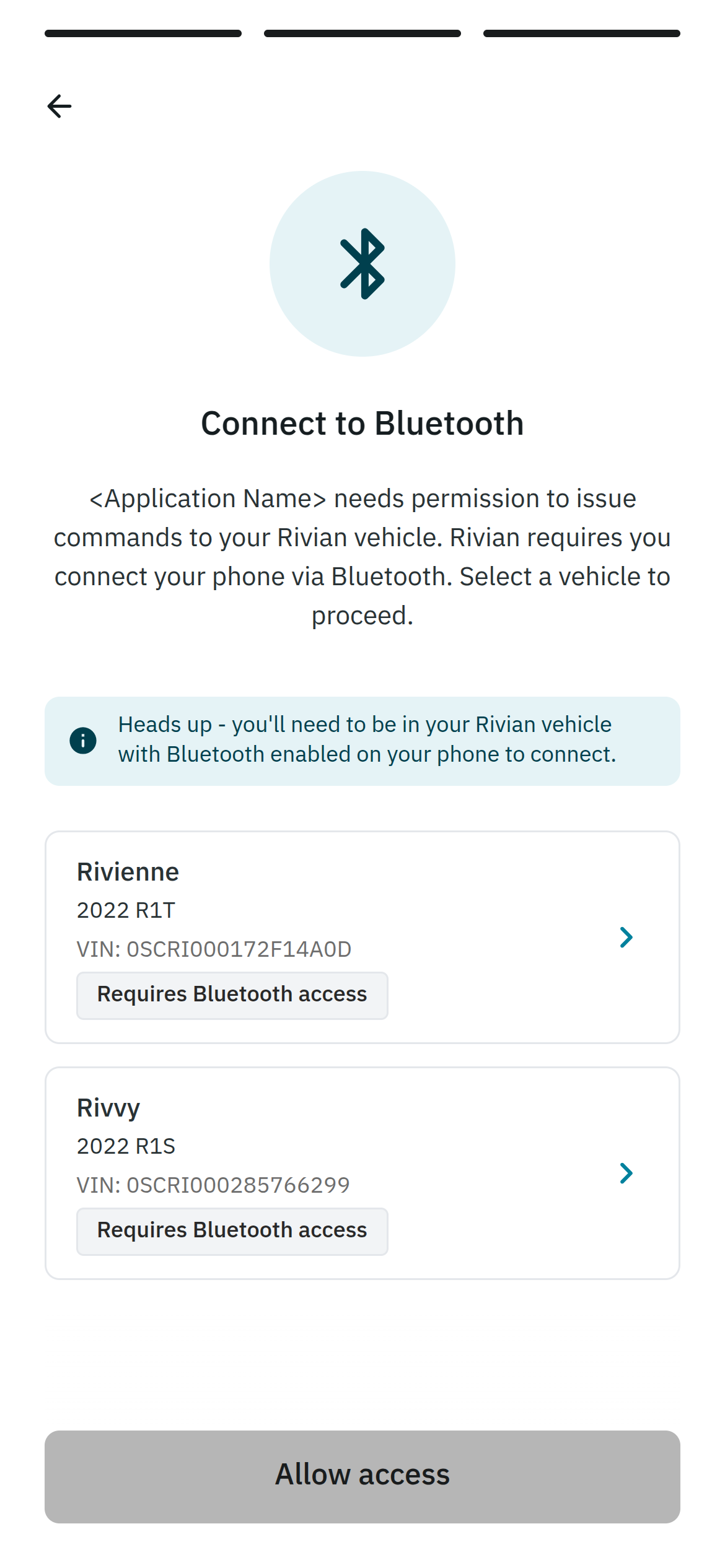 After selecting the vehicle, the user will be prompted to tap “Set up now” on the Rivian vehicle’s display and follow any on-screen prompts to connect.
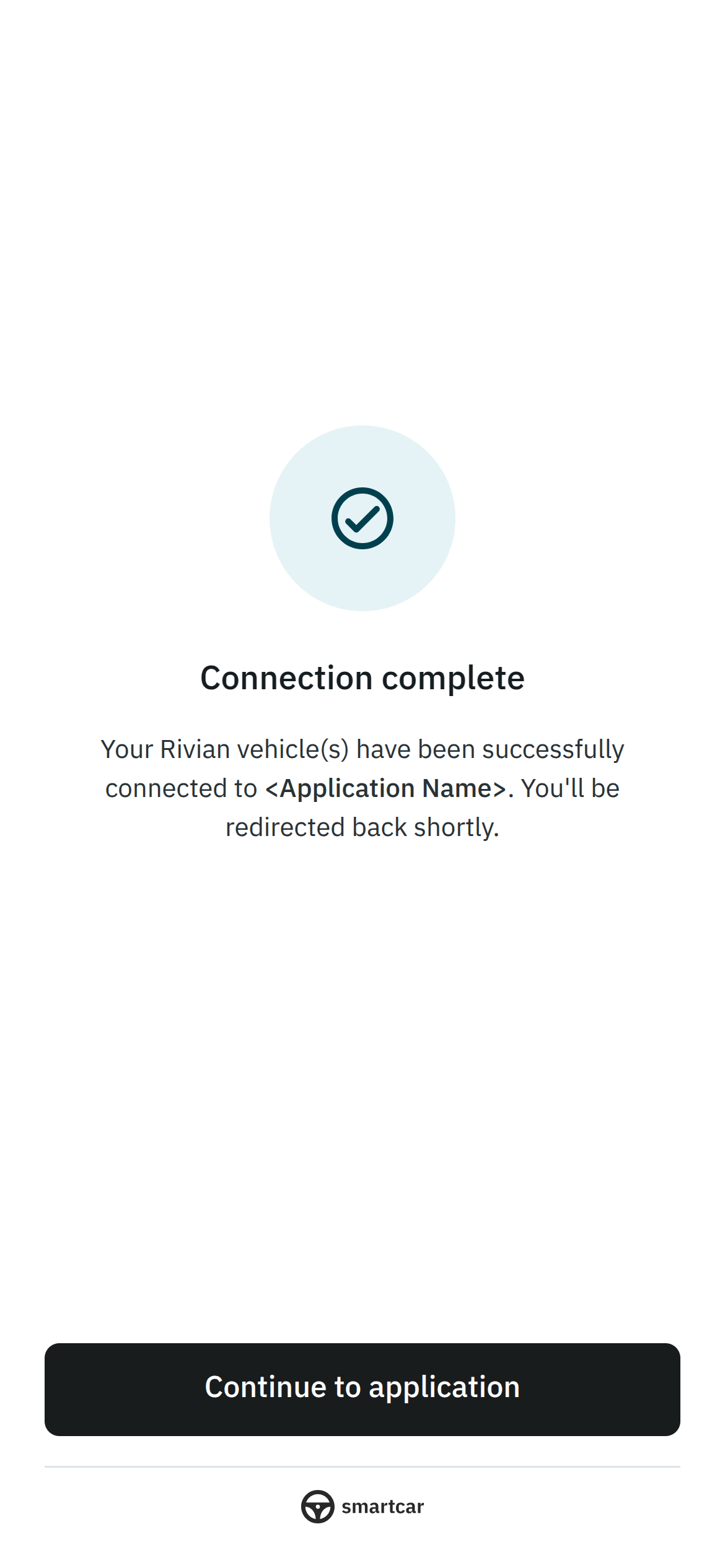
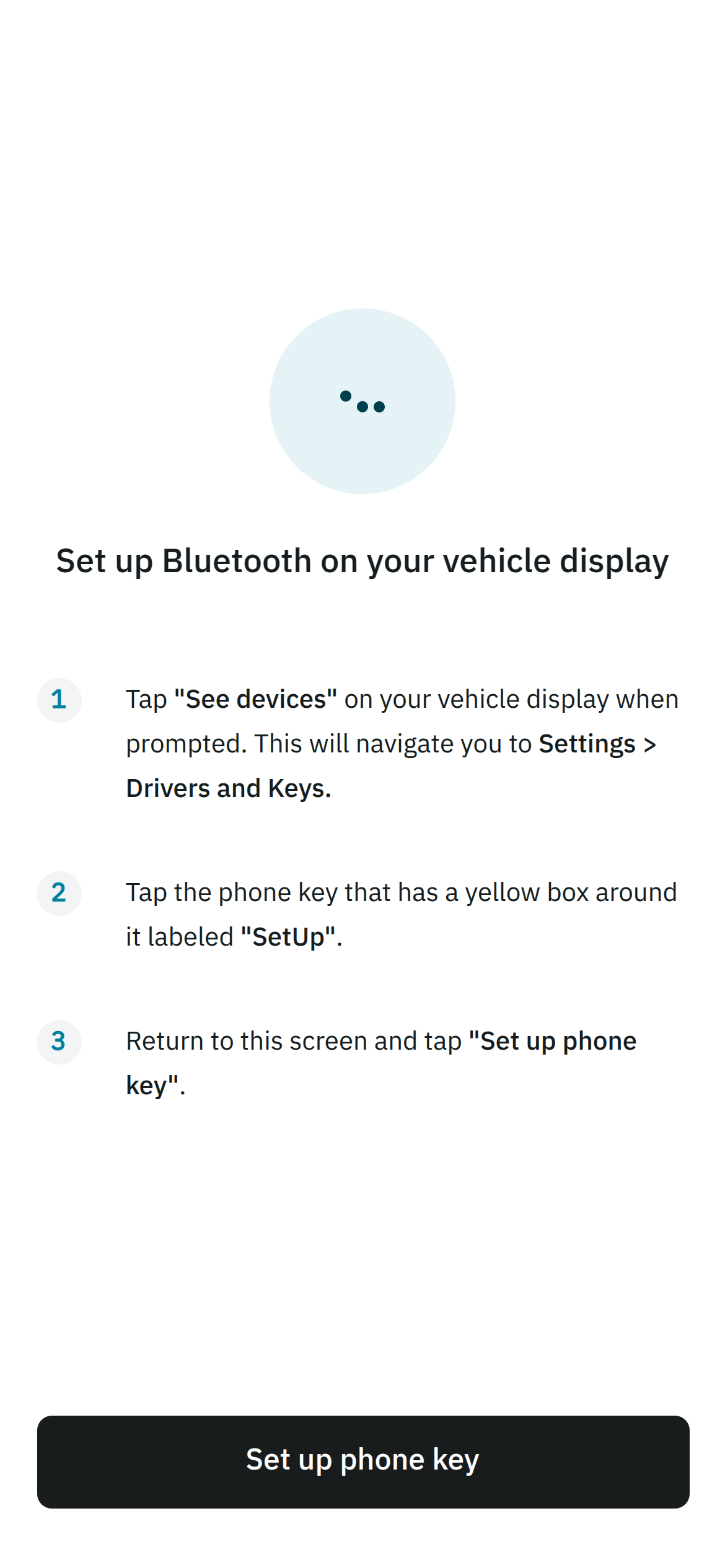 Once setup is complete, the application will be able to issue commands to the Rivian vehicle.
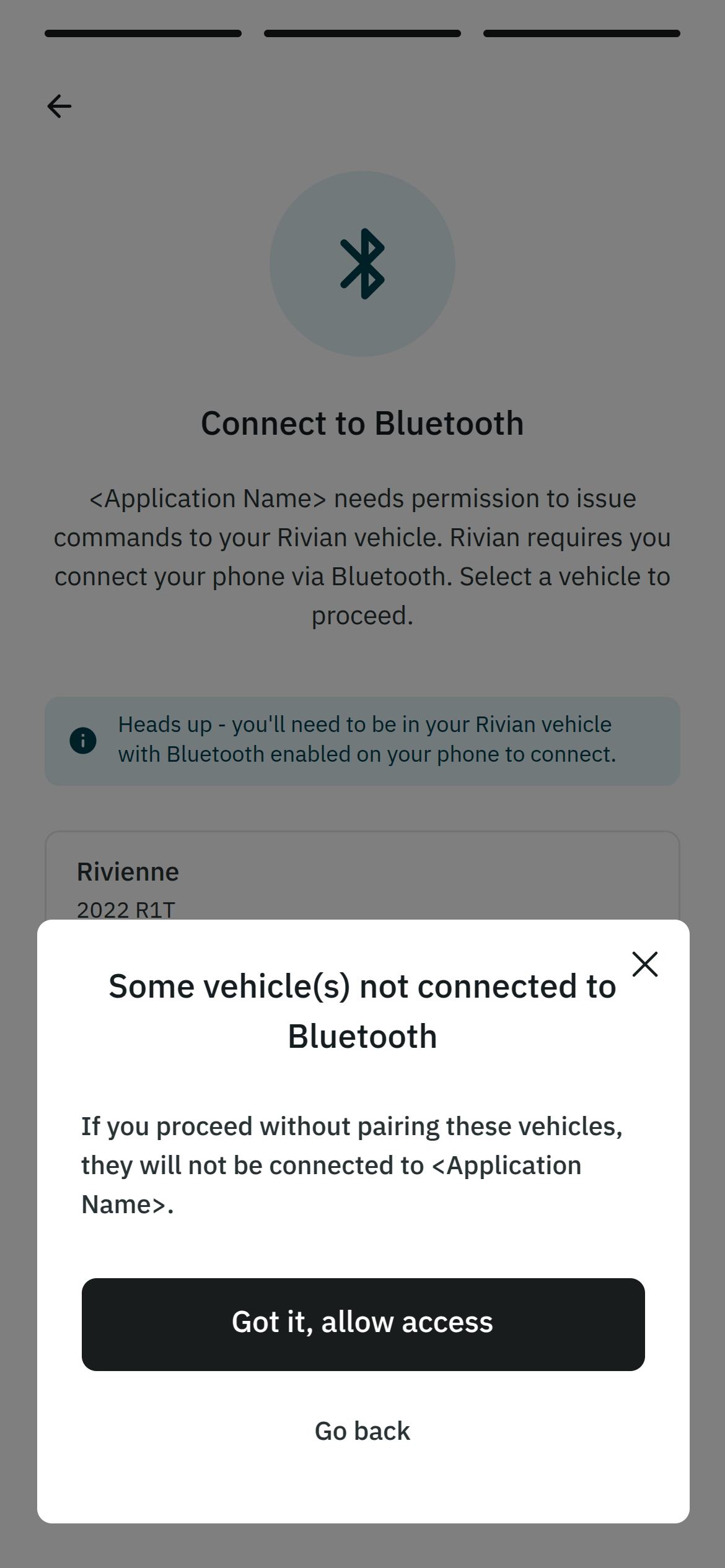
 Should Bluetooth be disabled or the Rivian display prompts not followed, the Bluetooth connection will not be established and the vehicle will not be connected to your application.
 ## Notes
* Rivian vehicles must be paired via Bluetooth to support commands. Data permissions (i.e. `read_location`, `read_charge`) do not require Bluetooth pairing.
* The following commands are supported for Rivian vehicles: lock/unlock, start/stop charge, and set charge limit.
* If a user has multiple Rivian vehicles, they will be prompted to pair each vehicle that they wish to connect to your application.
* At least one vehicle must be paired via Bluetooth to complete the pairing process before the user can continue with the Connect flow and connect their Rivian to your application.
* If there are multiple drivers associated with a Rivian account and both drivers want to connect to your application, each driver must pair their mobile device to the vehicle via Bluetooth.
* There is a limit of four devices that can be paired to a Rivian vehicle at one time. If a user has already paired four devices to their Rivian, they will need to unpair one of the existing devices from the vehicle before they can pair their mobile device and complete the connection to your application.
* Smartcar mobile SDKs for iOS and Android are required to pair the vehicle via Bluetooth.
## Notes
* Rivian vehicles must be paired via Bluetooth to support commands. Data permissions (i.e. `read_location`, `read_charge`) do not require Bluetooth pairing.
* The following commands are supported for Rivian vehicles: lock/unlock, start/stop charge, and set charge limit.
* If a user has multiple Rivian vehicles, they will be prompted to pair each vehicle that they wish to connect to your application.
* At least one vehicle must be paired via Bluetooth to complete the pairing process before the user can continue with the Connect flow and connect their Rivian to your application.
* If there are multiple drivers associated with a Rivian account and both drivers want to connect to your application, each driver must pair their mobile device to the vehicle via Bluetooth.
* There is a limit of four devices that can be paired to a Rivian vehicle at one time. If a user has already paired four devices to their Rivian, they will need to unpair one of the existing devices from the vehicle before they can pair their mobile device and complete the connection to your application.
* Smartcar mobile SDKs for iOS and Android are required to pair the vehicle via Bluetooth.